Quotes Management
The Quotes module allows your business to quickly generate, manage, and track product or service quotes to streamline communication with customers and partners.
Quotes Lifecycle
The following diagram shows the various stages in the quotes workflow:
Quote Status Description
| Status | Description |
|---|---|
| Draft | The quote is being prepared and is not yet shared with the customer. |
| Issued | The quote has been finalized and sent to the customer for review. |
| Accepted | The customer has reviewed and approved the quote. |
| Declined | The customer has reviewed the quote but chose not to proceed. |
| Closed | The quote process has been completed, usually after acceptance or other closure. |
| Void | The quote has been manually voided and is no longer valid. |
| Expired | The quote was not accepted within its validity period and is no longer active. |
Dashboard Overview
The Quotes Dashboard provides a centralized view of all quotes in the system. At the top, status tiles display the total number of quotes in each stage, offering quick insights into your quoting pipeline. This dashboard helps streamline quote management and track progress at a glance.
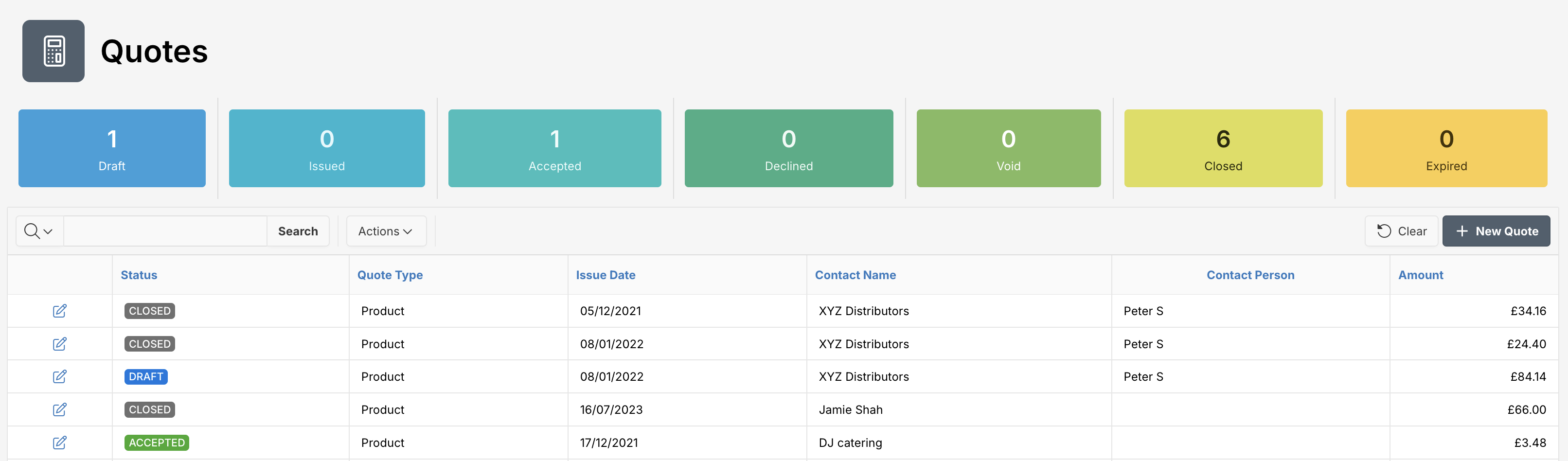
- Search Quotes: Use the search bar to quickly find quotes by customer name, quote number, or other keywords.
- Create New Quotes: Click the New Quote button to initiate a new quote.
- View Quotes List: Scroll down to see a detailed list of all quotes, including key information such as status, quote type, issue date, contact, contact person, and amount.
- Edit Quote: Use the icon to edit any quote.
Quote Creation & Editing
To add a new Quote, click at New Quote button. To create or edit a quote, you’ll enter the following information:
Fields Overview
You must fill in required fields, marked with a red asterisk (*).
| Attribute | Description |
|---|---|
| Quote Type | Select the nature of the quote - Proposal, Product or Other |
| Issue Date | Date and time when the quote is created |
| Valid From Date | Date from which the quote becomes effective |
| Valid To Date | Last date on which the quote is valid |
| Reference No | Internal or external reference identifier (optional) |
| Contact | Customer or company receiving the quote |
| Contact Person | Individual associated with the contact |
| Tax Mode | Choose between Exclusive or Inclusive tax |
| Description | Notes or purpose of the quote |
Quote Lines
Each quote can have multiple line items:
| Field | Description |
|---|---|
| Item | Name of the product/service |
| Description | Additional details about the item |
| Quantity | Number of units |
| UOM | Unit of Measure (e.g., Piece) |
| Unit Price | Cost per unit |
| Amount | Total before tax |
| Tax Rate | Tax percentage applied |
| Tax | Calculated tax amount |
| Net Amount | Total including tax |
| Estimated Delivery Date | Delivery expectation per line |
| Notes | Line-specific notes |
Document Upload
You can upload supporting files via Upload Document:
- Select document type:
Quotation,Delivery Note, orGeneral - Drag and drop or browse files (Allowed document types - PDF, Word, Excel; max document size 15MB)
Signature Handling
Once a quote is ready, it can be digitally signed:
- Signatory name, date, and location are captured
- View signature under the Signatures tab
- Use the Sign button to initiate signing
Quote Actions
The Actions menu provides access to key operations for managing the quote throughout its lifecycle. Use this menu to preview, issue, sign, duplicate, convert, or delete a quote as needed.
| Attribute | Description |
|---|---|
| Preview | View a PDF representation of the quote to see how it will appear to the client. This is useful for reviewing formatting, content, and layout before issuing the quote. |
| Issue | Send the finalized quote to the client for their review. Once issued, the quote moves from the Draft stage to Issued and becomes visible to the client. |
| Delete | Permanently remove the quote from the system. Use this action only when the quote is no longer needed, as it cannot be recovered once deleted. |
| Copy | Create a duplicate of the quote with the same details. This is useful for quickly generating a similar quote without starting from scratch. |
| Create Sale Order | Convert the quote into a sale order once it has been accepted. This marks the transition from quoting to order fulfillment. |
| Create Work Order | Generate a work order from the quote to initiate service delivery or production based on the quoted items and terms. |
| Create Invoice | Generate an invoice directly from an Accepted quote. This helps streamline the billing process by carrying over all relevant details. |
| Sign | The Sign action allows authorized users to electronically sign a quote, confirming their acceptance or approval. This adds a digital signature to the quote, making it legally binding and ready for the next steps in the sales or contract process. |
Example Workflow
If you need help, reach out to your admin or support team.