Site Management
Manage your rental properties with ease using the Site Management module. This guide covers the overview, work orders, contacts, contracts, documents, and utilities information associated with a site.
Site Lifecycle
The following diagram shows the various stages in the site workflow:
Site Status Description
| Status | Description |
|---|---|
| New | Property has been added to the system but is not yet active. The landlord lease agreement is yet to be signed. |
| Active | Property is active in the system, with the landlord lease signed, tenancy agreement in place |
| Occupied | Property is occupied by tenants, and all tenancy obligations are currently being fulfilled. The property is actively rented out and under management. |
| Void | Property is temporarily vacant, undergoing void works. No tenants are present, and the property is in between tenancies, undergoing repairs or upgrades. |
| Inactive | Property has been deactivated in the system, either due to being removed from management or no longer under lease, or the landlord no longer wishes to proceed. |
Sites Dashboard
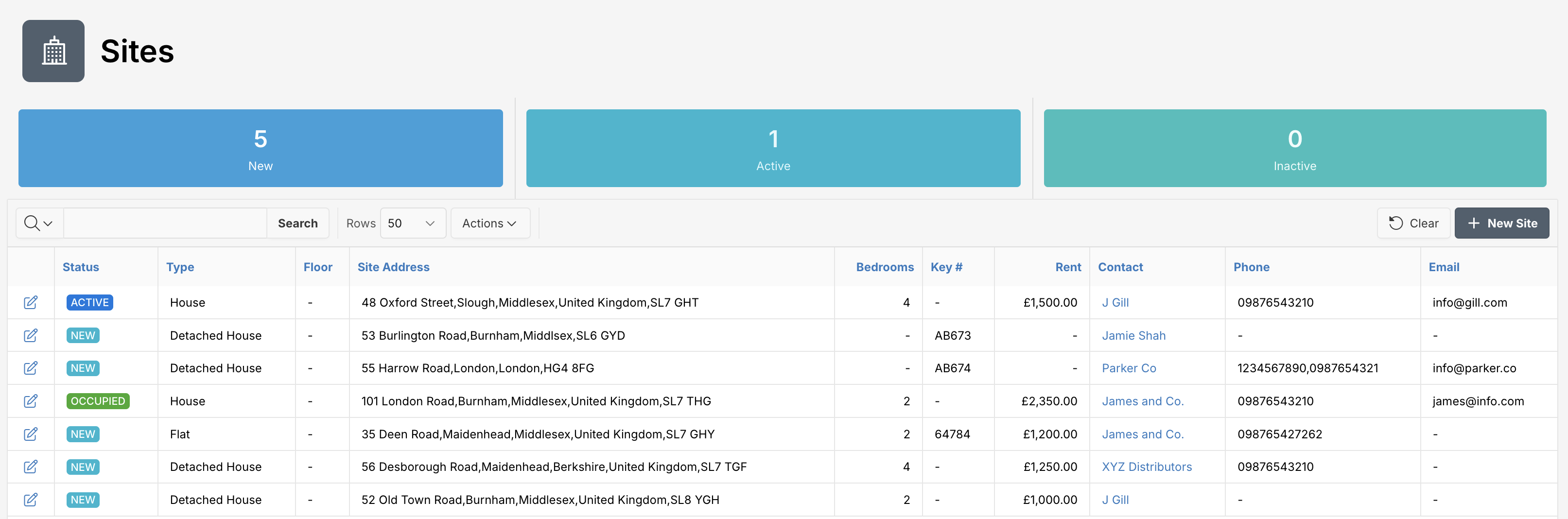
A high-level table showing all properties with:
- Status (
New,Active,Occupied,Inactive,Void) - Type
- Site Address
- Number of Bedrooms
- Key number
- Rent
- Contacts and phone/email
🧭 Use this as your command center for managing multiple sites.
Adding a New Site
To add a new Site, click at New Site button.
Fields Overview
You must fill in required fields, marked with a red asterisk (*).
| Attribute | Description |
|---|---|
| Registration Date | Date when the site was registered. |
| Contact * | Primary contact person for the site. |
| Site Name | Name assigned to the site, if applicable. |
| Site Type | Type of the site (e.g., House). |
| Address Line 1 * | First line of the site’s address. |
| Address Line 2 | Second line of the site’s address (optional). |
| City * | City where the site is located. |
| Province/County | County or province of the site’s location. |
| Postcode | Postal code of the site. |
| Country | Country where the site is situated. |
| Phone 1 | Primary phone number. |
| Phone 2 | Secondary phone number (optional). |
| Email Address | Email contact for the site. |
| Communication Mode | Preferred mode of communication (Email, Phone, Post). |
| Notes | Additional notes related to the site. |
| Availability Date | Date when the property becomes available. |
| Key No | Identification number for the property’s key. |
| Number of Bedrooms | Total number of bedrooms. |
| Site Area (in Square Foot) | Total area of the site in square feet. |
| Furnishing State | Furnishing status (Furnished, Semi-furnished, Un-furnished). |
| Rent | Monthly rent amount. |
| Rent Mode | Method of rent payment (e.g., BACS). |
| Agent Managed | Whether the property is managed by an agent. |
| Glazing Type | Type of window glazing (Single or Double). |
| Parking Type | Available parking type (Garage, In Drive, Roadside). |
| Reference ID | Unique reference ID for the property, if applicable |
| Utility Type | Type of utilities provided (Electric, Gas, Electric & Gas). |
| Heating Type | Type of heating (Electric or Gas). |
| Electric Certificate Number | Electric certificate identification number. |
| Electric Certificate Issue Date | Issue date of the electric certificate. |
| Electric Certificate Expiry Date | Expiry date of the electric certificate. |
| Gas Certificate Number | Gas certificate identification number. |
| Gas Certificate Issue Date | Issue date of the gas certificate. |
| Gas Certificate Expiry Date | Expiry date of the gas certificate. |
| Energy Rating Certificate Date | Date of the energy rating certificate. |
| Energy Rating Certificate Number | Energy rating certificate identification number. |
| Mains Smoke Alarm Count | Count of mains-connected smoke alarms. |
| Battery Smoke Alarm Count | Count of battery-operated smoke alarms. |
| Building Insurance Expiry Date | Expiry date for the building insurance. |
| Land Registry Information | Details from the land registry. |
| Maintenance Cover | Indicates if maintenance cover is available. |
| Maintenance Membership No | Membership number for maintenance cover. |
| Children Allowed | Indicates if children are allowed. |
| Multiple Tenant Allowed | Indicates if multiple tenants are permitted. |
| Student Allowed | Indicates if student tenants are allowed. |
| Benefit Tenant Allowed | Indicates if benefit-receiving tenants are allowed. |
| Pets Allowed | Indicates if pets are allowed. |
View Site
View or update site information seamlessly:
- Click the edit icon next to any site to view Site information.
Site Overview
Each property, or Site, contains rich details including landlord, tenant, utilities, maintenance, and contract data.
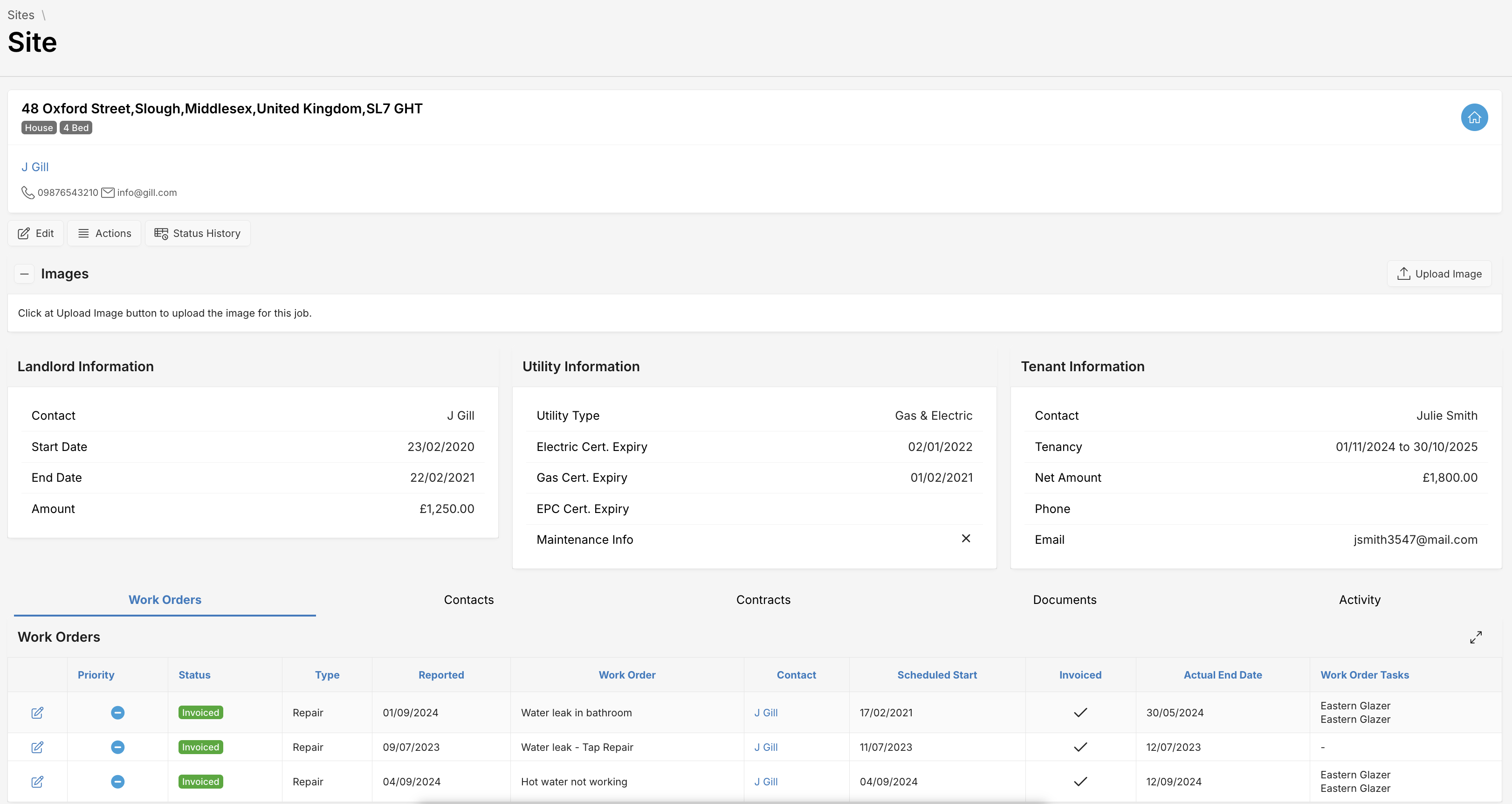
Highlights:
- Address & Property Type: Located at the top.
- Landlord Information: Contract dates and amount.
- Utility Details: Type and certificate expiry dates.
- Tenant Information: Tenancy period, rent, and contact.
Editing Site Information
To edit a site, click the Edit button on the overview panel. This opens multiple tabs for a detailed update.
Overview Tab
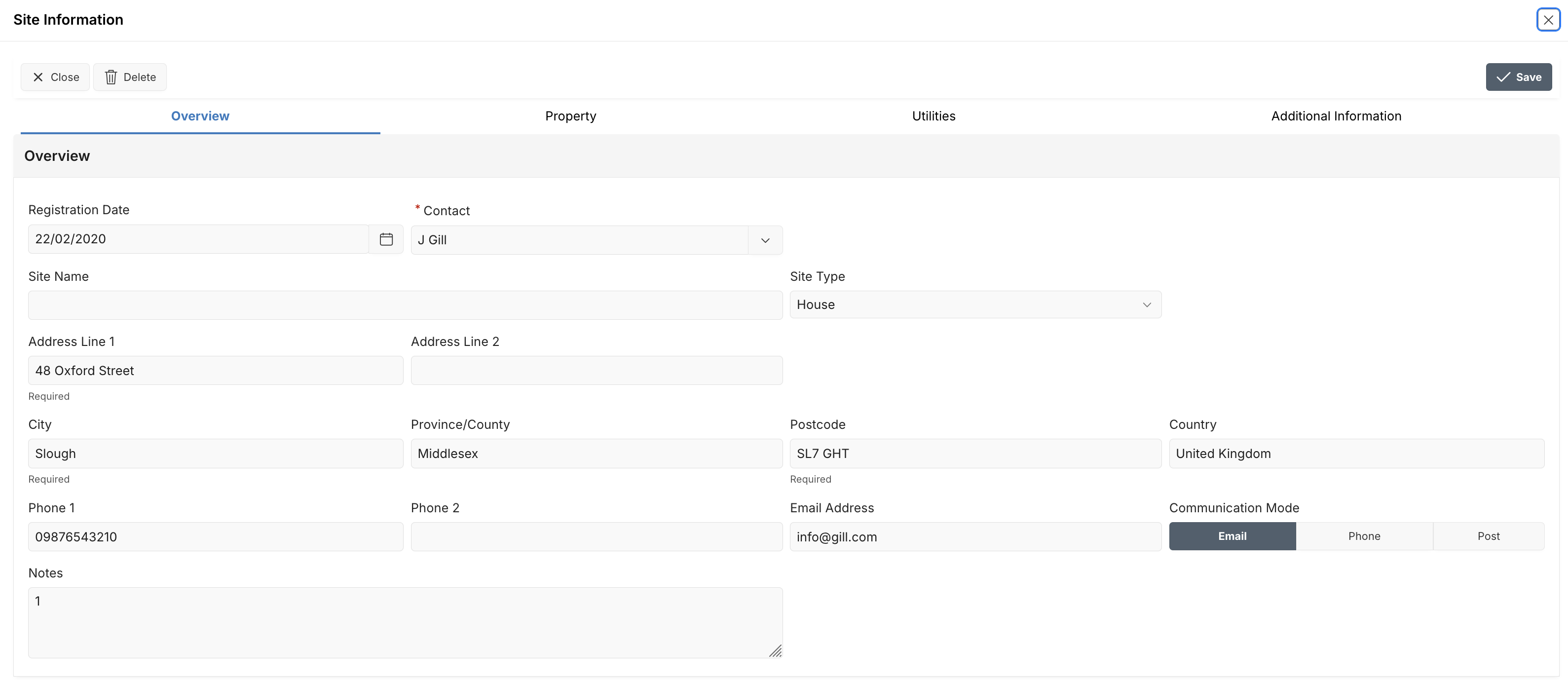
Includes:
- Contact person
- Address
- Phone/email
- Registration Date
- Communication mode
Property Tab
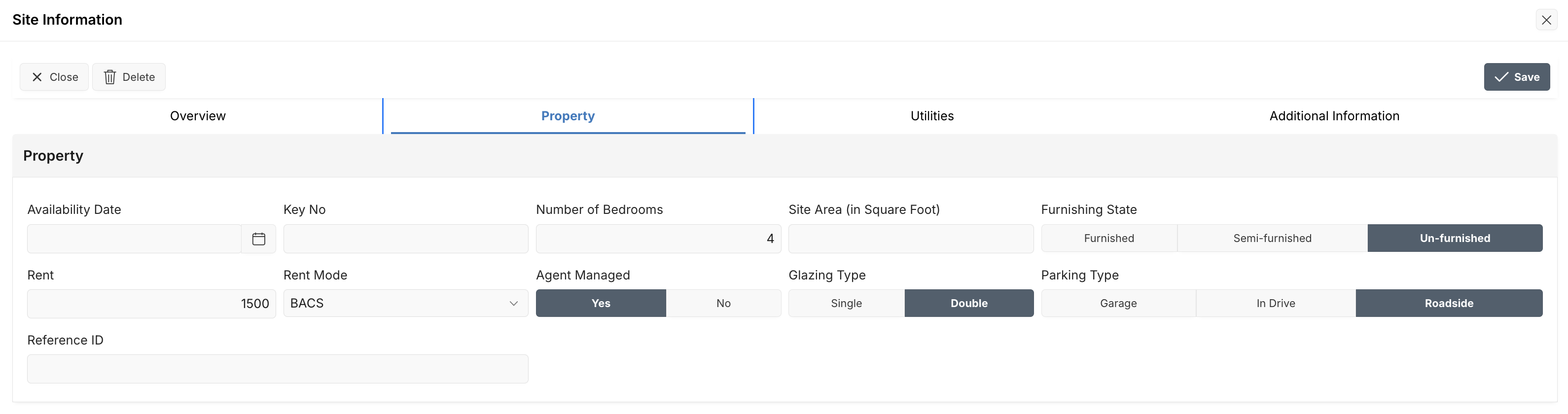
Define:
- Bedrooms, bathrooms
- Furnishing state
- Glazing, parking type
- Agent-managed status
- Rent & availability
Utilities Tab
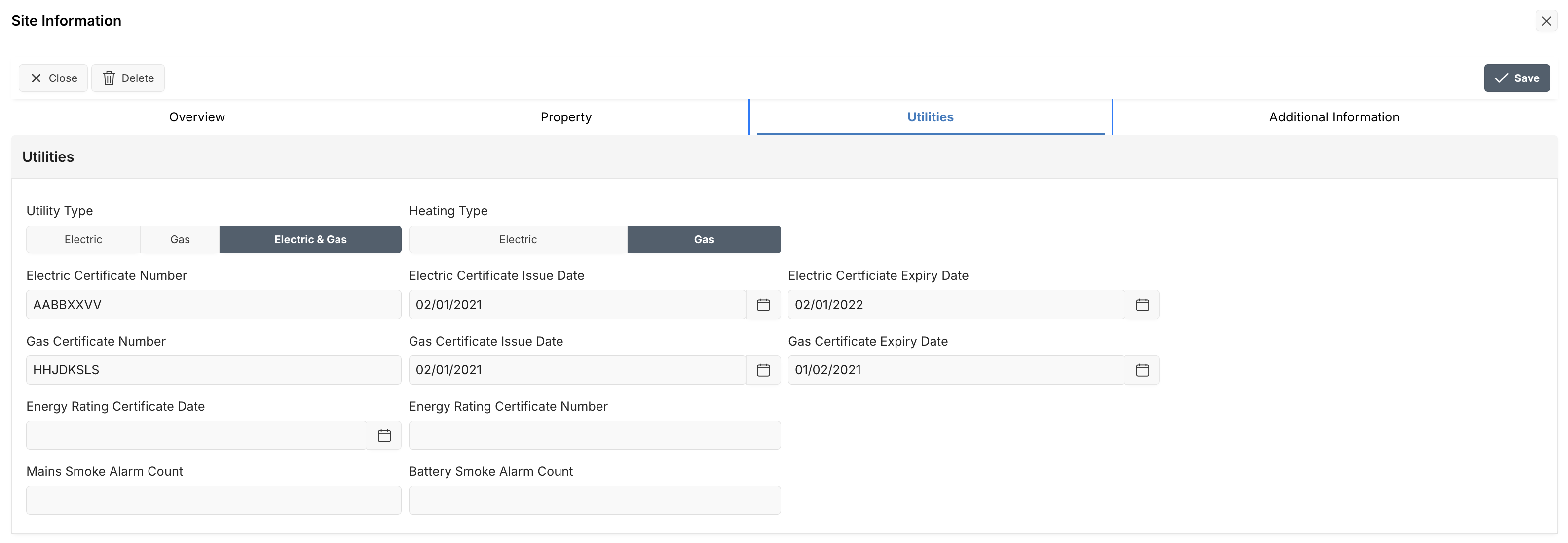
Manage:
- Utility type & heating
- Certificate numbers and expiry dates
- Smoke alarm details
Additional Information Tab
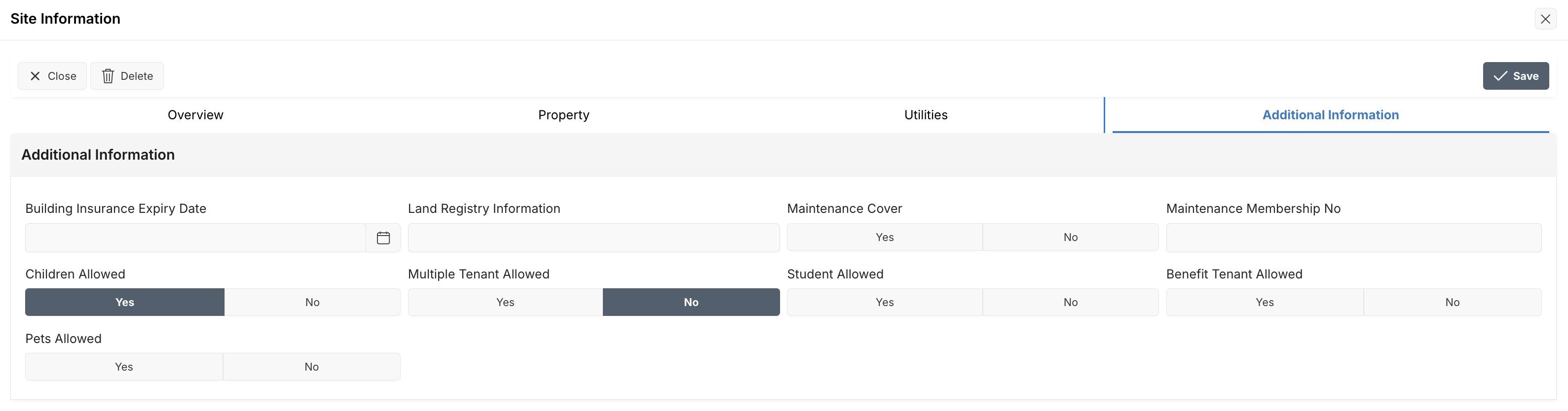
Policy info:
- Pets/children allowed
- Student & benefit tenants
- Multiple tenants toggle
- Building insurance & maintenance info
Actions Dropdown
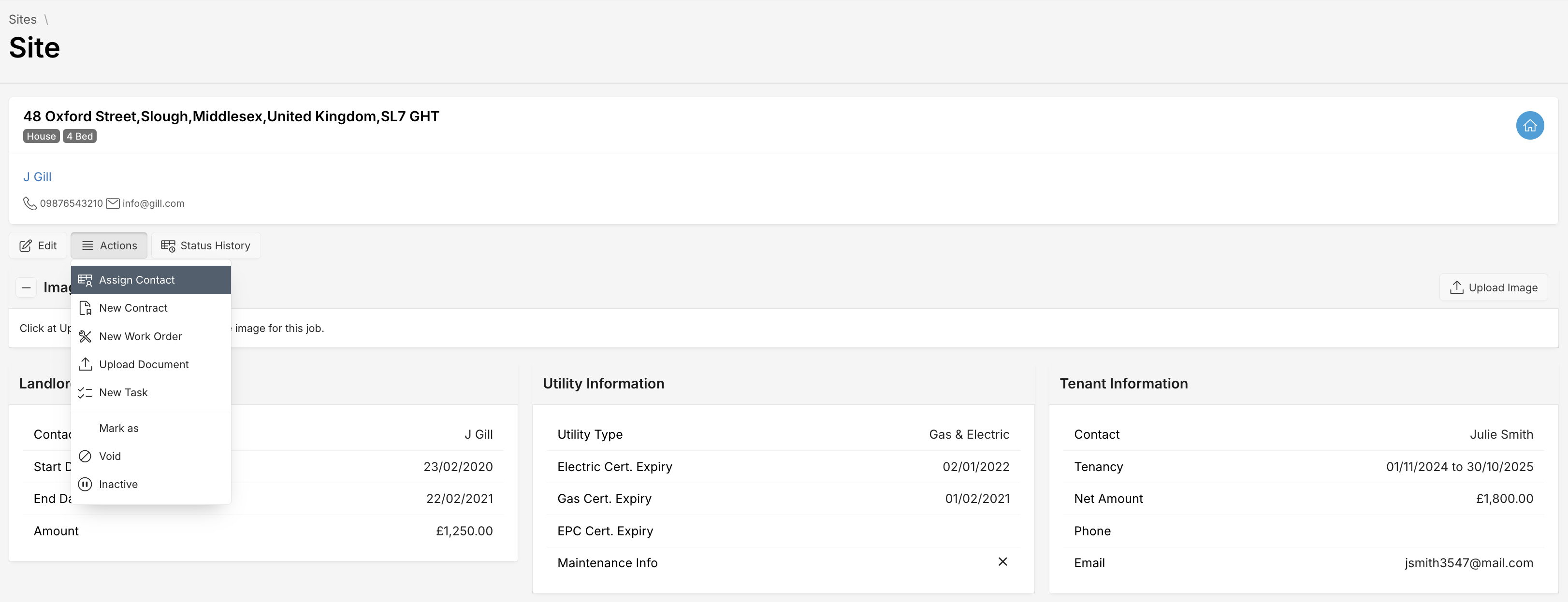
From the actions menu, you can:
- Assign contact
- Create new contract or work order
- Upload document
- Create new task
- Mark property as
VoidorInactive
Available Sections
Work Orders
Tracks repair and maintenance work associated with the Site.
Work Order Information
| Attribute | Description |
|---|---|
| Priority | Low, Medium or High |
| Status | Work Order status (New, Scheduled, In Progress, Completed, On Hold, Invoiced) |
| Type | Work Order type (Inspection, Repair, Move In, Move Out etc.) |
| Reported | Work Order creation date |
| Work Order | Summary of work order |
| Contact | Contact person name |
| Scheduled Start | Scheduled start date |
| Invoiced | Whether work order has been invoiced or not |
| Actual End Date | Actual end date when order completed |
| Work Order Tasks | List of assigned contacts and vendors |
Contracts
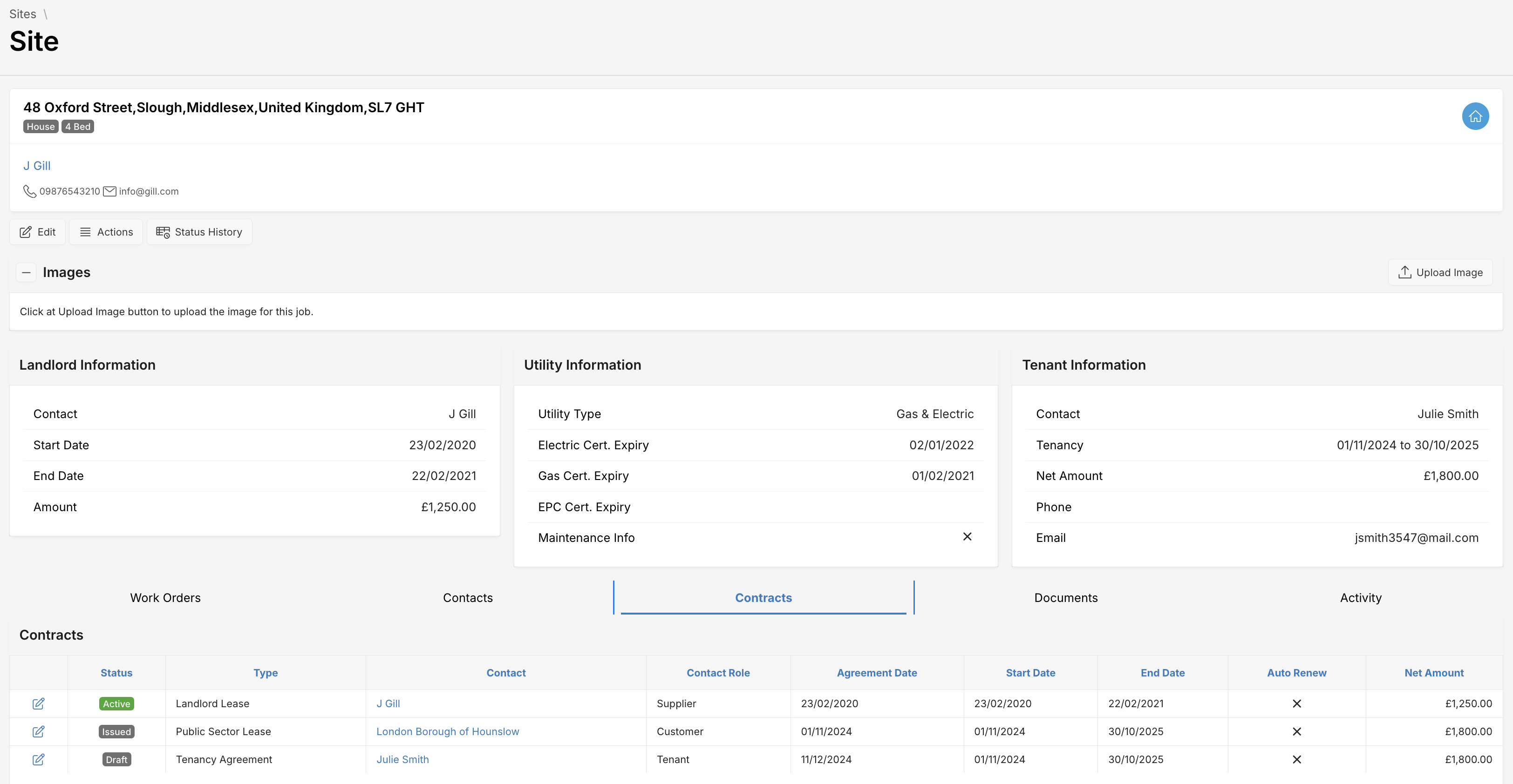
Displays current and past contracts.
Info includes:
- Contract type and status
- Roles (landlord, tenant, agency)
- Duration and amount
Status include:
Active,Draft,Issued
Documents
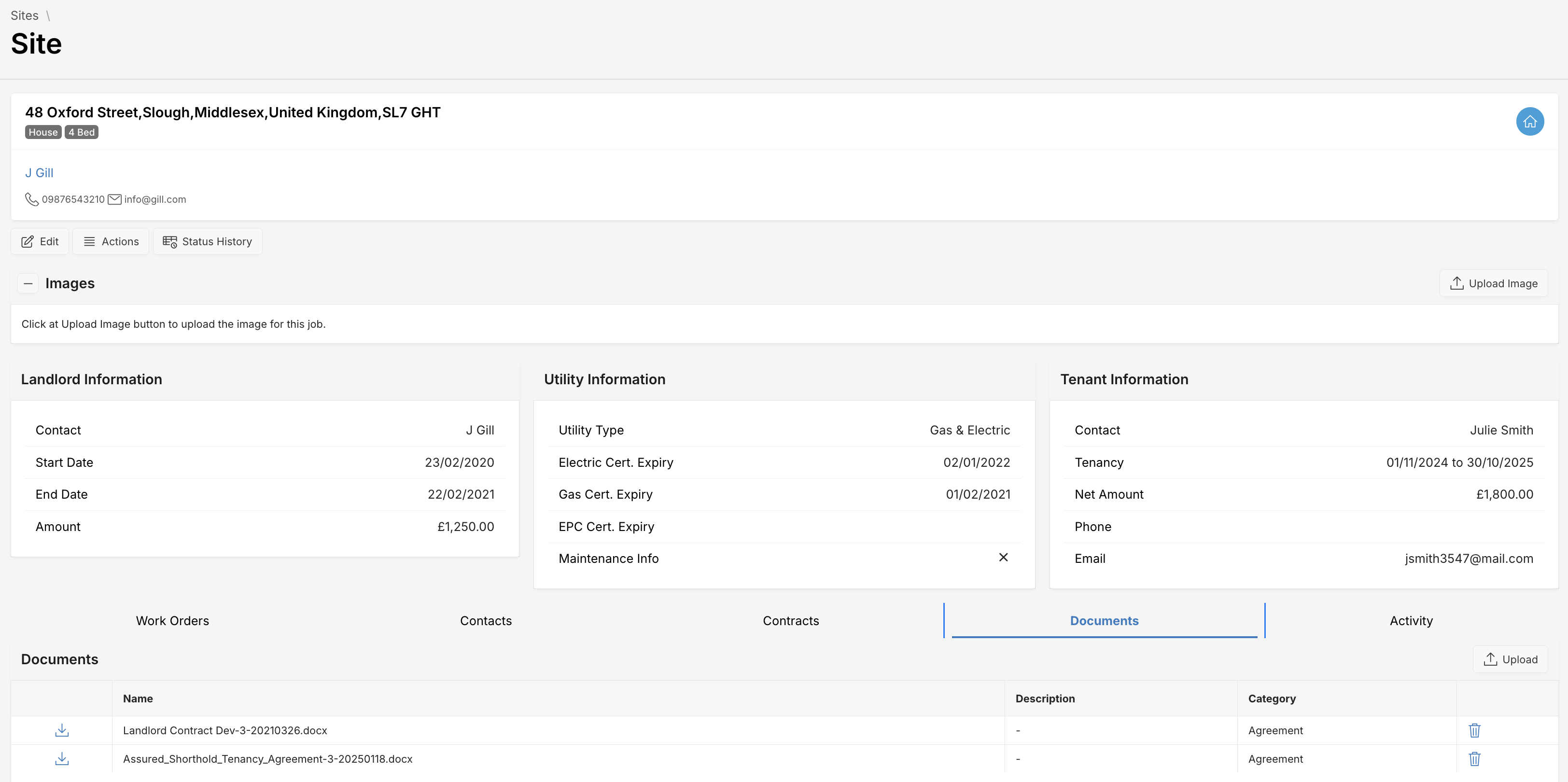
Upload and manage Site documents such as:
- Landlord lease agreements
- Tenancy agreements
Tips & Best Practices
- Regularly update utility certificates.
- Upload signed tenancy agreements promptly.
- Use work orders to track every maintenance issue.
- Always verify contact roles in contracts.