Bills
The Bills section under the Accounts module is where you manage supplier expenses and payment records. This module helps record expenses, track unpaid and paid bills, organize supporting documentation, and ensure timely payments.
Key Features
- Bill Entry & Recording: Manually add bills received from vendors or service providers, with details like invoice date, due date, and reference numbers.
- Linked Transactions: Associate bills with Work Orders, Purchase Orders, or specific properties for clear audit trails and cost tracking.
- Recurring Bills: Set up automated entries for regular expenses such as utility bills, service contracts, or management fees.
- Bill Status Tracking: Monitor bill statuses (e.g.,
Draft,Approved,Paid,Overdue), and filter by vendor, due date, or property. - Attachments & Documentation: Upload scanned bill copies or receipts as supporting documents directly to each bill entry.
- Export: Export the bills data in CSV format, compatible with accounting platforms like Xero for syncing and reconciling records.
Bills Dashboard
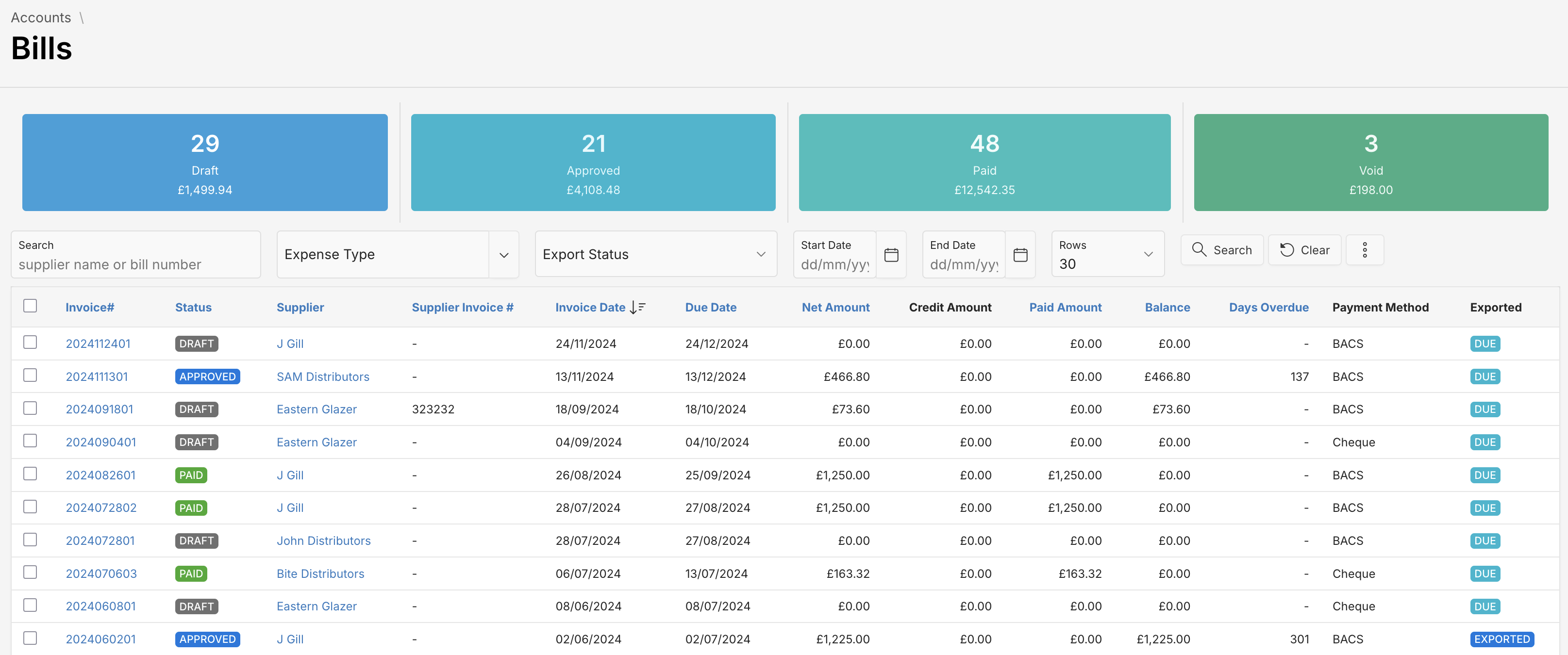
The Bills Dashboard provides a centralized view of all bills in the system. At the top, status tiles display the total number of bills in each stage, offering quick insights into your expenses pipeline. This dashboard helps streamline expense management and track progress at a glance.
Usage Tips
- Search Bills: Use the search bar to quickly find bills by supplier name or bill number.
- View Bills List: Scroll down to see a detailed list of all bills with sortable columns, including key information such as status, supplier, due date, bill amount and export status.
- Filter Search Results: Use the search filters to refine search results for an Expense Type, Bill Export Status and Bill date range.
- Create New Bills: Click the button and select New Bill option to create a new bill.
- Edit Bill: Click at bill number to edit the bill.
Status Description
| Status | Description |
|---|---|
| Draft | Bills created but not yet approved. |
| Approved | Bills that are ready for payment. |
| Paid | Payment has been made for this Bill and it has been marked as paid. |
| Void | Cancelled bills that are excluded from accounting. |
Export Options
From the Bills Dashboard, you can export bills data in CSV format using the available options under the Export menu:
- Bills - Summary - Exports a summary of all bill-related expenses, including supplier invoices, card payments, and other accrued expenses.
- Bills - Cash Summary - Exports only cash-based expenses such as petty cash payments and immediate out-of-pocket expenditures.
To export bills, click at button, choose Export, and select the appropriate option.
These CSV files are compatible with accounting platforms like Xero (e.g., for import into Xero > Expenses), making it easier to sync and reconcile your financial records.
Bill Creation & Editing
To add a new Bill, click at button and select New Bill option. To create or edit a bill, you’ll enter the following information:
Fields Overview
You must fill in required fields, marked with a red asterisk (*).
| Attribute | Description |
|---|---|
| Invoice | System-generated unique bill reference. |
| Invoice Date | The official date the supplier issued the bill. |
| Due Date | When the payment is due to the supplier. Due Date is calculated based on Payment Term. |
| Supplier | Name of the supplier providing the goods/services. |
| Supplier Invoice | Reference number from the supplier’s actual invoice. |
| Receipt Date | Date when supplier bill was received. |
| Purchase Order | Select the corresponding Purchase Order, if applicable. |
| Description | General purpose or title of the bill. |
| Payment Method | Method used to pay the supplier (e.g., BACS, Cash, Cheque, Credit Card, Direct Debit, Rental Income). |
| Payment Term | Agreement terms for payment (e.g., Net 30). |
| Tax Mode | Whether tax is applicable. If applicable, is it inclusive or exclusive of the amount. |
Invoice Lines
Each bill can include multiple items or services listed as invoice lines.
| Attribute | Description |
|---|---|
| Rent Journal (Supplier) | Links the invoice line to a specific Rent Journal entry. This is applicable when recording due rent for a Supplier (Landlord) under a contractual agreement. |
| Work Order # | References the associated Work Order in which the supplier has delivered goods or services. This ensures traceability between the invoice and operational fulfillment. |
| Item | Name or type of the good/service. |
| Description | Specifics of the work performed or item delivered. |
| Account | Ledger account for expense categorization. |
| Quantity | Number of items or service units. |
| Unit | Unit of measurement (e.g., Each, Hour). |
| Rate | Cost per unit. |
| Amount | Total before tax |
| Discount | Any line-specific discount applied. |
| Tax Rate | Applicable tax (e.g., 20% VAT). |
| Tax Amount | Calculated tax for the line. |
| Net Amount | Final cost per line after adjustments. |
Bill Detail View
Each bill has multiple tabs including Invoice Lines, Notes, Payments, Documents, and Activity. These tabs provide information on associated records for this bill.
Notes
Use this tab to manage Debit Notes associated with Bills. Use this area to issue adjustments for overpayments, returns, or billing corrections.
Payments
Track historical payments made against the bill. The following table describes the payment list columns:
| Column | Description |
|---|---|
| Edit Icon | Allows you to edit the payment entry details, such as amount, date, or method. |
| Status | Indicates the current state of the payment (e.g., Draft, Paid). |
| Payment Date | The date on which the payment was recorded or processed. |
| Amount | The monetary value of the payment applied to the bill. |
| Payment Method | Specifies how the payment was made (e.g., BACS, Cash, Cheque, Credit Card, Direct Debit, Rental Income). |
Documents
The Documents tab displays all files uploaded to this bill.
To add supporting documents, click Upload Document. In the upload dialog, you can either drag and drop files or browse to select them manually.
Supported file types: PDF, Word, Excel
Maximum file size: 15 MB
Activity
Displays system-generated logs and interactions related to the bill lifecycle.
Actions Menu
The Actions menu provides quick access to key operations related to the selected bill:
-
Edit Bill
Opens the bill in edit mode, allowing you to modify bill details such as items, dates, and amounts. -
New Note
Adds a Credit Note or Debit Note linked to this bill, typically used for adjustments or corrections. -
Pay Bill
Initiates the payment process for the bill, allowing you to record or apply a payment. -
Export
Exports the bill data in CSV format, compatible for import into Xero > Expenses. Useful for syncing records with your accounting platform.
Bill Payments
The Payments tab allows you to record and manage payment transactions associated with a bill. This ensures accurate tracking of liabilities, avoids double payments, and keeps your vendor relationships healthy.
How to Make a Payment
To initiate a payment for a bill:
- Open any Approved bill.
- Click the Actions button and select Pay Bill.
- A Payment Information dialog will appear for you to enter payment details.
- Click Save Payment to confirm and apply the transaction.
Fields Overview
You must fill in required fields, marked with a red asterisk (*).
| Attribute | Description |
|---|---|
| Amount Due | Total outstanding amount for the bill. Automatically filled based on the due amount. |
| Payment Amount | The actual amount you’re paying at this time. |
| Transaction Fee | Optional fee charged for the payment (e.g., bank processing fee). |
| Payment Account | The account (e.g., business bank account) used to pay the bill. |
| Payment Date | Date when the payment is recorded as made. |
| Contact Account | The supplier’s account receiving the payment. |
| Payment Reference | A unique reference or memo for tracking the payment (e.g., invoice number). |
After Payment Is Saved
Once the payment information has been saved:
- The Payments tab will display a new payment entry with all recorded details.
- The Balance on the bill is reduced accordingly.
- If the balance reaches 0, the bill is marked as Paid.
- You can edit or remove payments if needed.
Example Scenario
| Field | Example Value |
|---|---|
| Payment Amount | £466.80 |
| Transaction Fee | £0.00 |
| Payment Date | 29/04/2025 |
| Payment Account | HSBC Business |
| Contact Account | SAM Distributors |
| Payment Reference | INV2024/11301 |
Best Practices
- Always verify the Payment Method and Account before saving.
- Use unique Payment References to avoid reconciliation errors.
Need more help? Visit FAQs or contact our support team!