Item Information
The Items module is where you manage the actual products, goods, or services that your business sells or purchases. From tracking inventory and pricing to uploading documents and managing tax details — this section gives you full control and visibility.
Overview
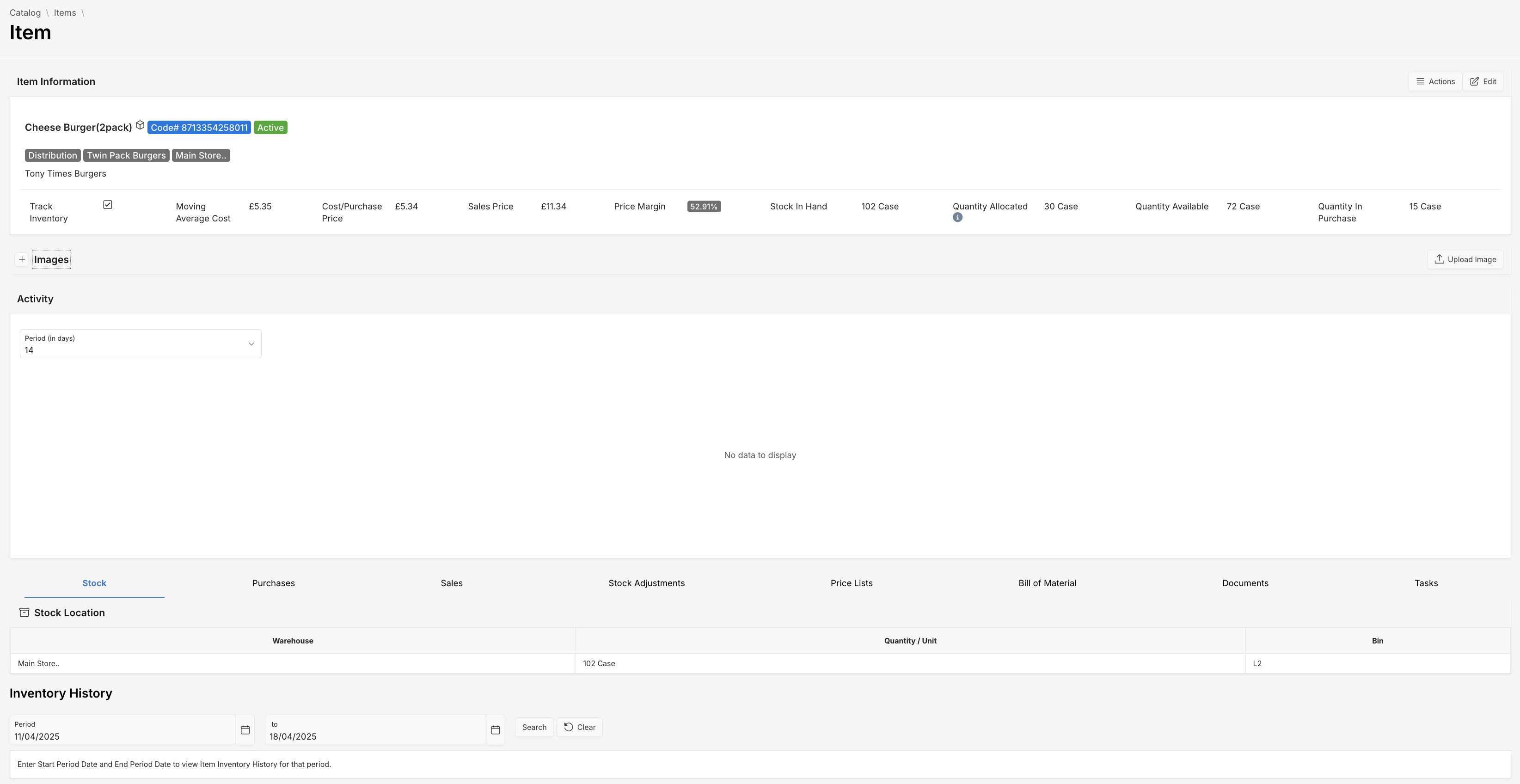
Click any item to view its full profile, including:
- Item Code, Type, Brand
- Group and Warehouse info
- Stock movement
- Sales and purchase records
- Associated price lists
Quick Actions
Use Actions dropdown menu for the following shortcuts:
- Upload Document
- New Task
- Mark as Inactive
- New Item Pack
Editing an Item
To edit an item:
- Click the Edit button at the top right corner of the page.
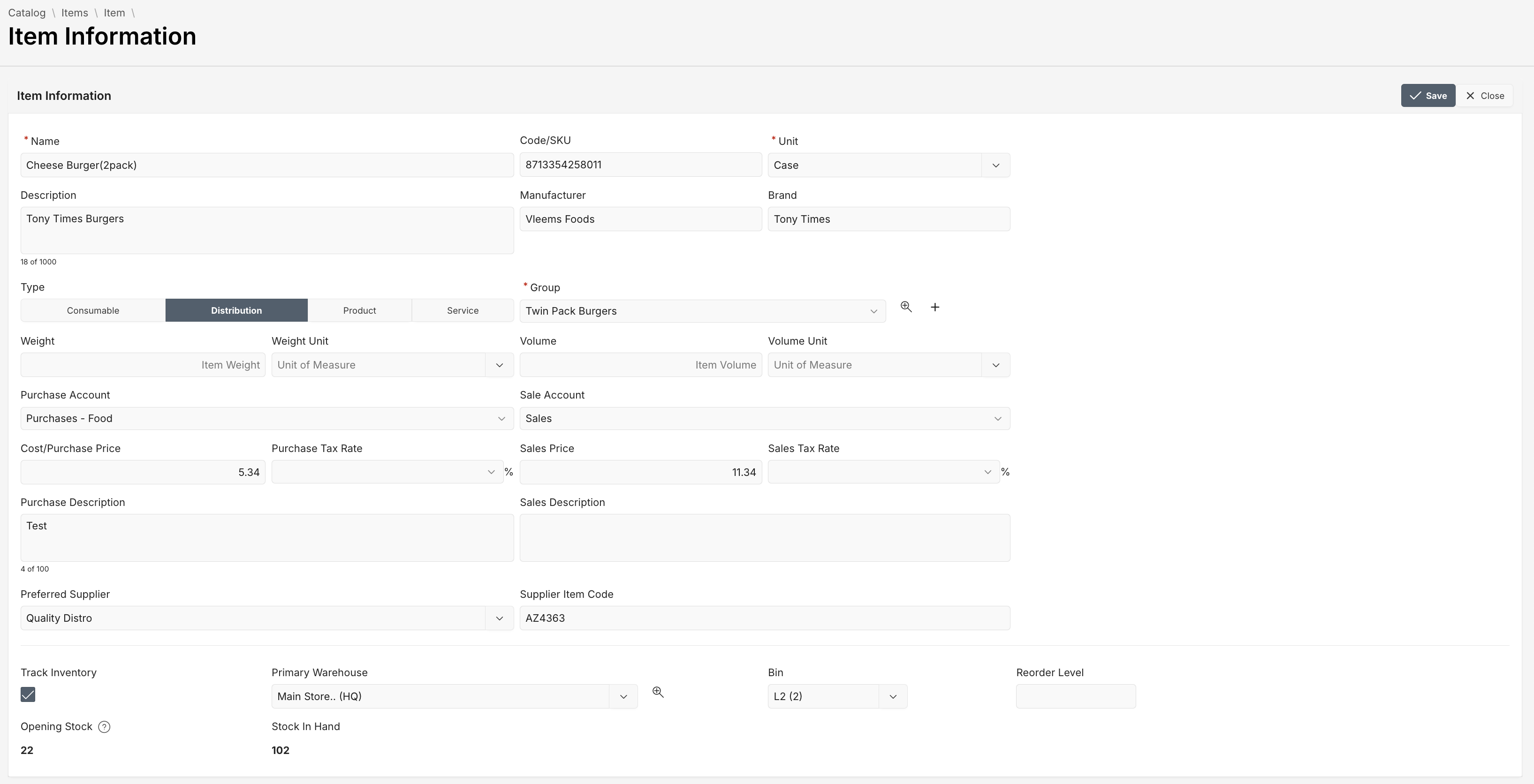
- Update the details in the Item Information form.
Fields Overview
You must fill in required fields, marked with a red asterisk (*).
| Attribute | Description |
|---|---|
| Name * | Full name of the item. Example: Cheese Burger (2pack) |
| Code/SKU | Unique internal stock keeping unit |
| Unit * | The standard unit for purchase/sale (e.g., Bottle, Case) |
| Type | Classifies the item as Product, Service, Distribution, or Consumable |
| Group * | Categorization group for reporting and filtering |
| Manufacturer / Brand | Details about who made or branded the product |
| Purchase/Sales Account | Default General Ledger accounts for transactions |
| Cost/Purchase Price | The cost incurred or amount paid per unit |
| Sales Price | The price per unit for customers |
| Tax Rates | Applicable purchase or sales tax rate |
| Preferred Supplier | The vendor from whom the item is typically sourced |
| Supplier Item Code | Unique supplier-provided stock keeping unit |
| Track inventory | Whether this item’s stock levels are tracked |
| Primary Warehouse | Default storage location |
| Bin | Physical location within a warehouse |
| Reorder Level | Minimum threshold before restocking is recommended |
| Opening Stock | Stock level when item was first added |
| Stock In Hand | Current physical quantity available in the warehouse |
Uploading Images
You can attach one or more images to an item to visually represent it within the system. This is especially useful for identifying products quickly in catalogs, orders, or reports.
Click Upload Image under the Images tab to attach images to the item.
Fields Overview
You must fill in required fields, marked with a red asterisk (*).
| Attribute | Description |
|---|---|
| Image | (Required) Upload the image file by dragging and dropping or selecting from your file system. |
| Title | Optional label or name for the image. Helps in identifying specific views or versions (e.g., “Front View”). |
| Description | Optional additional details about the image. Could describe context, version, or notable visual cues. |
| Main Image | Toggle to mark this as the primary image for the item. Only one image can be marked as the main image. |
| Alt Text | Alternate text for screen readers or when the image fails to load. Supports accessibility and SEO best practices. |
After filling in the details, click Save to attach the image to your item.
Best Practices
- Use clear, high-resolution images with consistent backgrounds.
- Set the Main Image thoughtfully — it’s the one shown in list views and printouts.
- Keep Alt Text meaningful for better accessibility.
Inventory Activity
The Stock tab includes inventory history for a selected period, showing warehouse bin location and quantity movement.
Purchases
Track all purchase orders and bills associated with the item.

Sales
See invoices and sale-related documents, along with pricing and quantity sold.

Price Lists
Attach multiple price lists for both purchase and sale scenarios, including promotional or quantity-based pricing.

Tips
- Use
Track Inventoryfor items with physical stock. Disable for services or non-stock items. - Assign a
Reorder Levelfor automated low-stock alerts. - Maintain item images for better visual references during order processing.
By managing your item data comprehensively, your operations become more predictable, traceable, and scalable.