Notes
The Notes section allows you to manage financial documents such as Credit Notes and Debit Notes for your customer or supplier transactions. You can create, edit, export, and track notes from a centralized dashboard.
Notes Dashboard
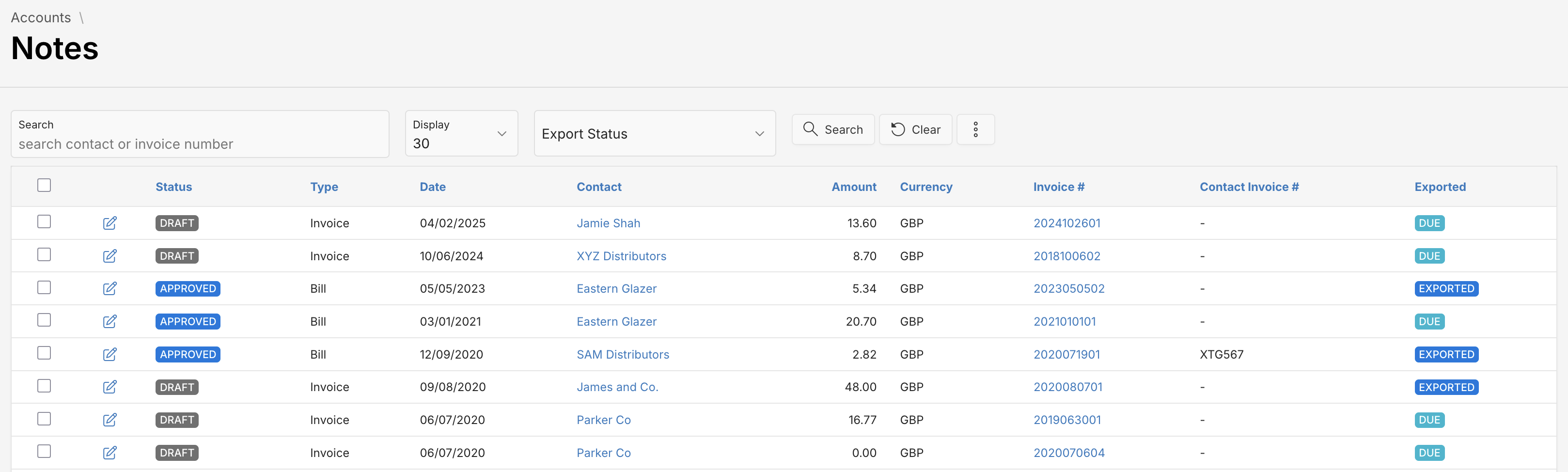
The main dashboard lists all your financial notes with filters and export options.
Usage Tips
- Search Notes: Use the search bar to quickly find notes by contact name or invoice number.
- View Notes List: Scroll down to see a detailed list of all notes with sortable columns, including key information such as status, contact, amount and export status.
- Filter Search Results: Use the search filters to refine search results for an Export Status.
- Create New notes: Click the button and select New Note option to create a new note.
- Edit Note: Click at icon to edit the note.
Exporting Notes
Exporting notes allows syncing and reconciling records with your accounting system. To export note data in CSV format, compatible with accounting platforms like Xero etc.
- Select the desired records using checkboxes.
- Click at button, choose Export > Selected Notes
- Once exported, the Exported status for that note will change to Exported.
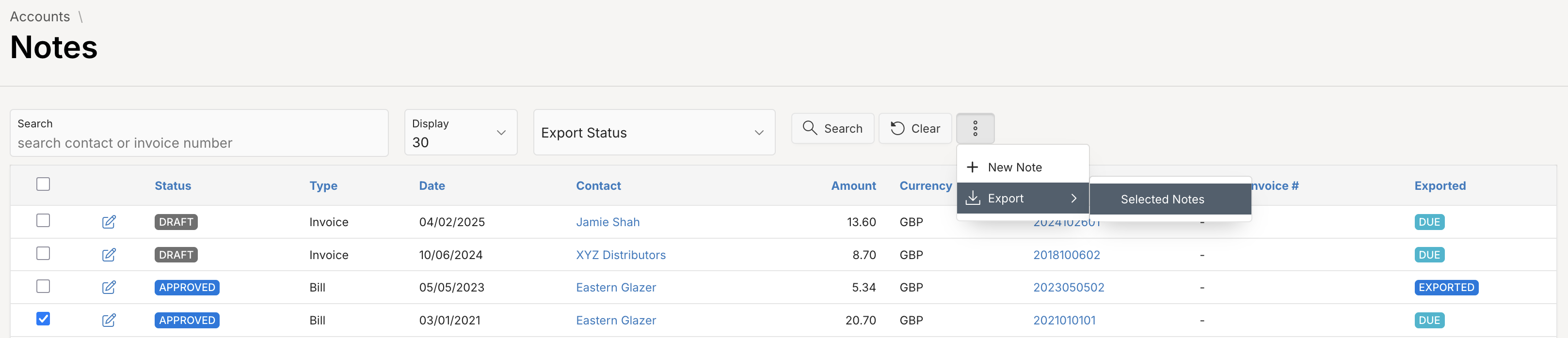
Only notes with an Approved status can be exported.
Creating and Managing Notes
To add a new Note, click at button and select New Note option.
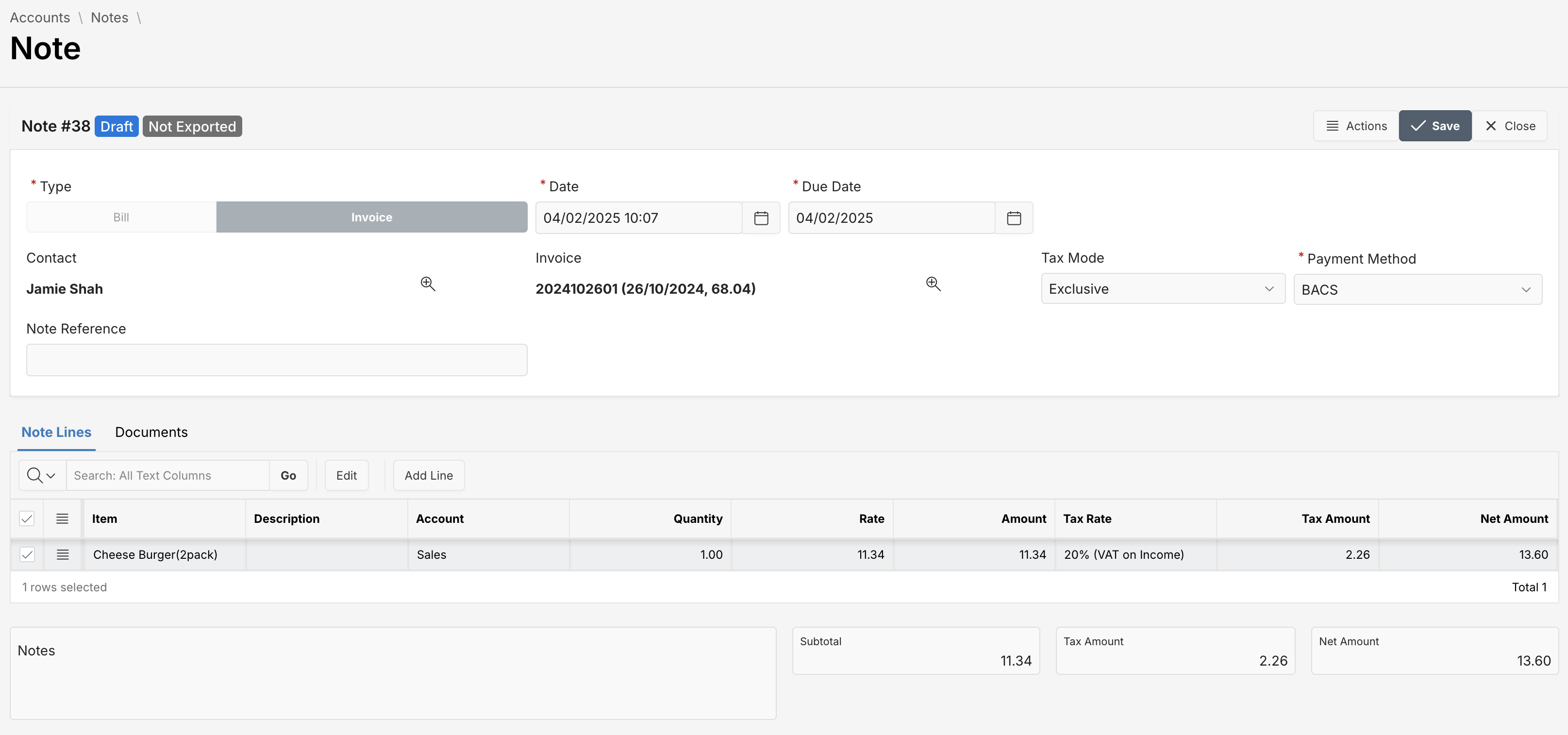
Note banner shows following additional attributes:
- Status: Status label like
DraftorApproved. - Exported: Indicates if the note has been exported to an external system lile
ExportedorNot Exported.
To create or edit a note, you’ll enter the following information:
Fields Overview
You must fill in required fields, marked with a red asterisk (*).
| Attribute | Description |
|---|---|
| Type | Select either Invoice or Bill to categorize the note. |
| Date | The issue date of the note. |
| Due Date | When the note becomes payable. |
| Contact | The customer or supplier associated with the note. |
| Invoice | Linked bill or invoice number and date (optional but useful for traceability). |
| Tax Mode | Choose how taxes are applied (e.g., Exclusive, Inclusive). |
| Payment Method | Payment method for tracking purposes (e.g., BACS, Cheque). |
| Note Reference | Internal reference text, if needed. |
Note Lines
Each note can include multiple items or services listed as note lines.
| Attribute | Description |
|---|---|
| Item | Name or type of the good/service as specified in the associated bill or invoice. |
| Description | Specifics of the goods/services delivered. |
| Account | Ledger account for revenue or expense categorization. |
| Quantity | Number of items or service units. |
| Rate | Cost per unit. |
| Amount | Total before tax |
| Tax Rate | Applicable tax (e.g., 20% VAT). |
| Tax Amount | Calculated tax for the line. |
| Net Amount | Final cost per line after adjustments. |
Only items listed in the associated bill or invoice can be selected.
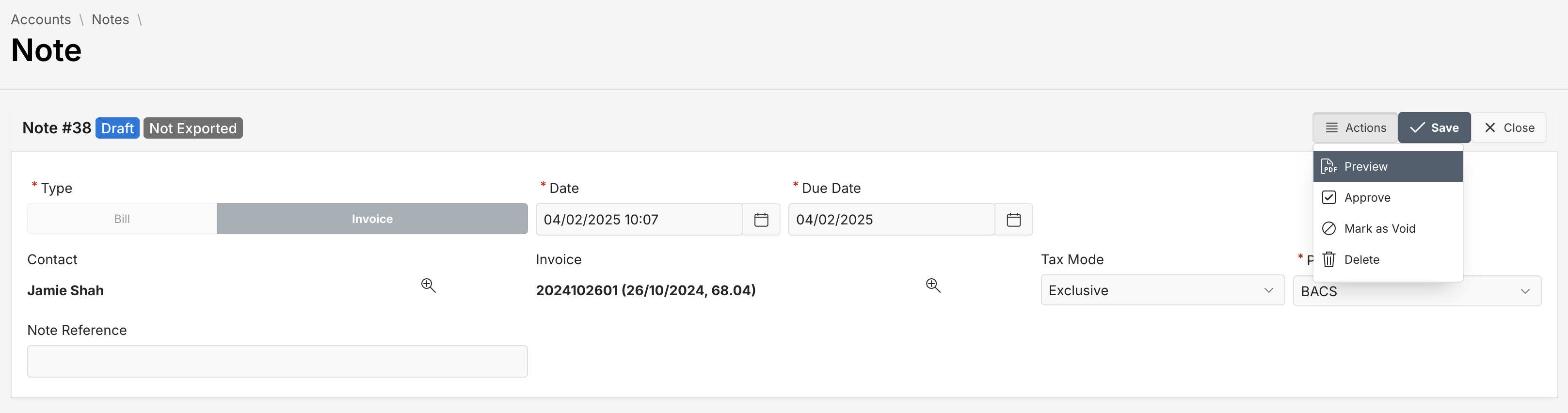
Actions Available:
- Preview: Generate a PDF preview of the note. Available for Credit Notes (Type:
Invoice) - Approve: Finalize the note and mark it as ready
- Mark as Void: Cancel an incorrect note
- Delete: Delete the note
Note Preview Features
-
Note Preview
Instantly displays a formatted PDF version of the note, showing all relevant details including branding, line items, taxes, and totals. -
Download
Click the Download button to export the note as a PDF file to your local system. -
Print
Print directly from the preview screen using the Print button, with formatting optimized for physical copies. -
Email
Use the Email button to send the note PDF to the associated contact’s email address.
Attaching Documents
Switch to the Documents tab and click the Upload button to add files to your note.
Tips
- Draft notes can be edited anytime.
- Only Approved notes can be exported.
- Use the Preview function to verify totals and layout before sending or exporting.
Have questions? Contact Support or check out our FAQs for more help.