Tenant App
Tenant App enable Tenants to interact with a management company via self-service application. It provides a centralized dashboard for managing repair requests, reviewing tenancy agreements, and keeping up with scheduled maintenance.
Tenant App is a responsive application that user can access it via desktop / laptop or their smartphone browser. This guide walks you through the core features and their purpose.
Dashboard Overview
The main dashboard displays your current tenancy details and active or past repairs related to your rented property.
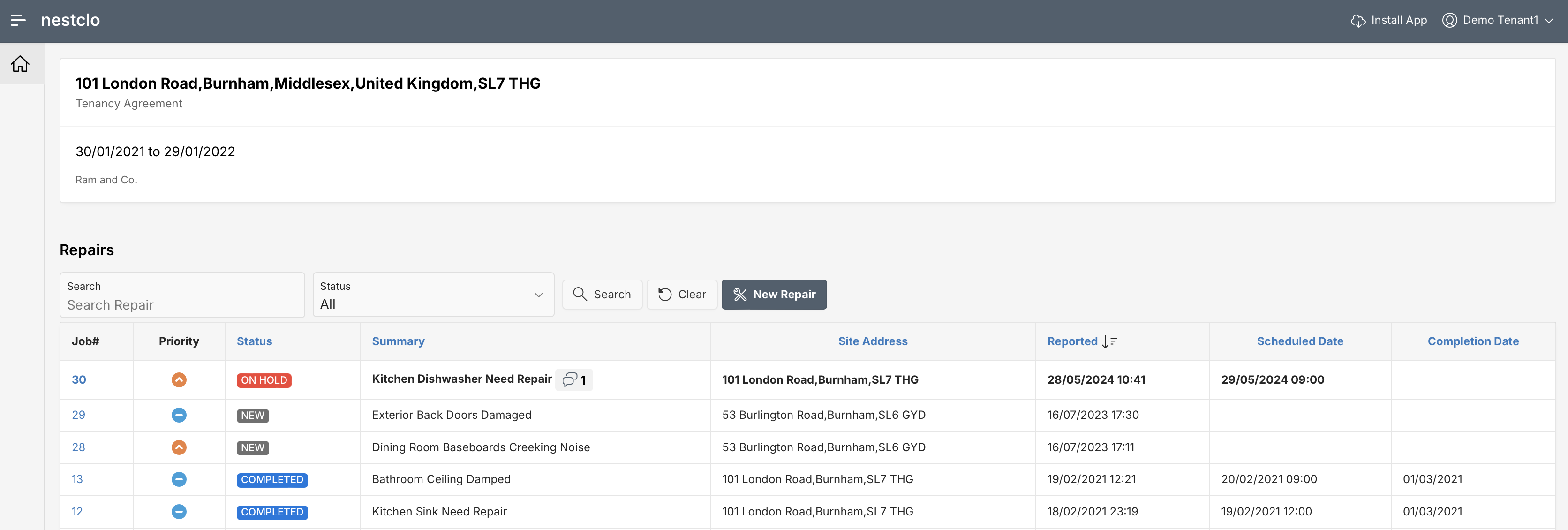
Tenancy Summary
| Attribute | Description |
|---|---|
| Property Address | Full address of your rented unit. |
| Agreement Dates | Start and end dates of your current tenancy. |
| Managing Agent | Name of the agency or landlord managing the property. |
Repairs List
View all reported, scheduled, or completed repairs at a glance.
| Attribute | Description |
|---|---|
| Job# | Unique identifier for each repair request. |
| Priority | Indicates urgency ( High, Medium or Low). |
| Status | Current status of the job (NEW, ON HOLD, COMPLETED, etc.). |
| Summary | Short description of the issue reported. |
| Site Address | Location where the issue is being addressed. |
| Reported | Date and time the issue was logged. |
| Scheduled Date | Date/time for the planned repair. |
| Completion Date | Date/time the repair was resolved. |
Use Status dropdown to filter your repairs, or use the Search bar to quickly locate a specific repair by description or job number.
Viewing and Updating Repairs
Clicking a repair job opens a detailed view where you can:
- Add a comment under Activity.
- Upload photos to help clarify the issue.
- Monitor changes in status, scheduling, or follow-ups.
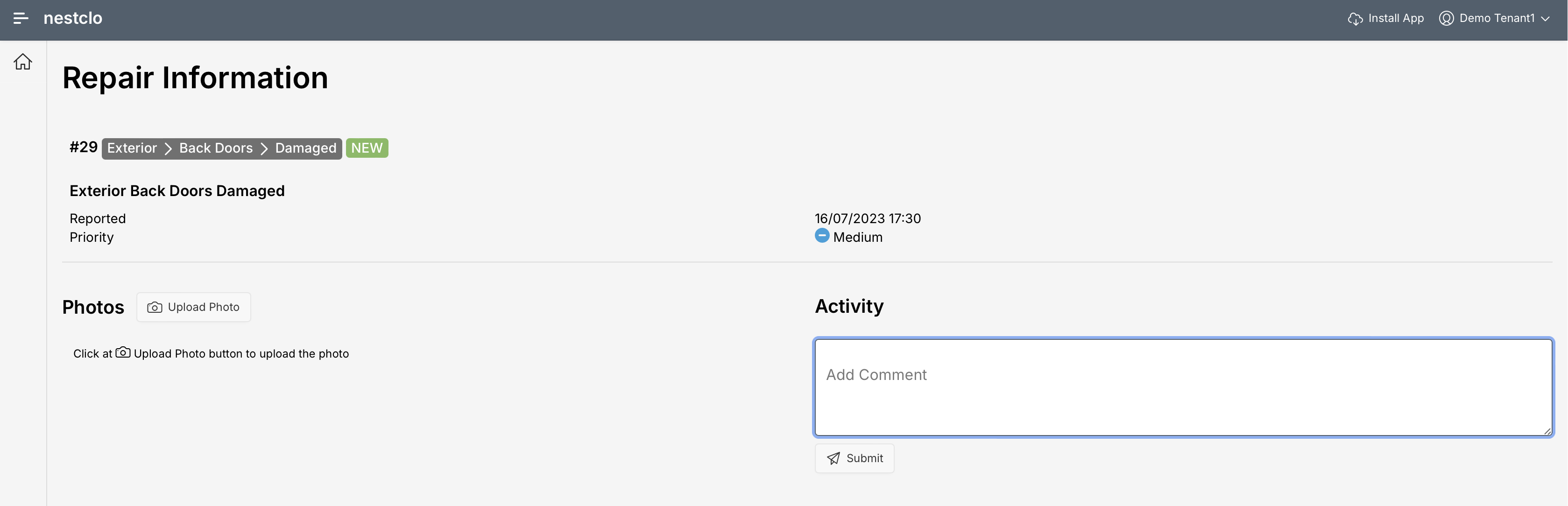
Repair Detail Attributes
| Attribute | Description |
|---|---|
| Title | Description of the repair issue. |
| Job Tags | Categorized tags for location/type (e.g., Exterior > Back Doors > Damaged). |
| Reported | Date/time the issue was submitted. |
| Priority | Importance level (High, Medium, or Low). |
| Photos | Visual evidence attached by you or your landlord. |
| Activity Feed | Comments or scheduling updates posted by you or property manager. |
Mobile Experience
The mobile layout mirrors the desktop but in a card-based view for easier navigation.
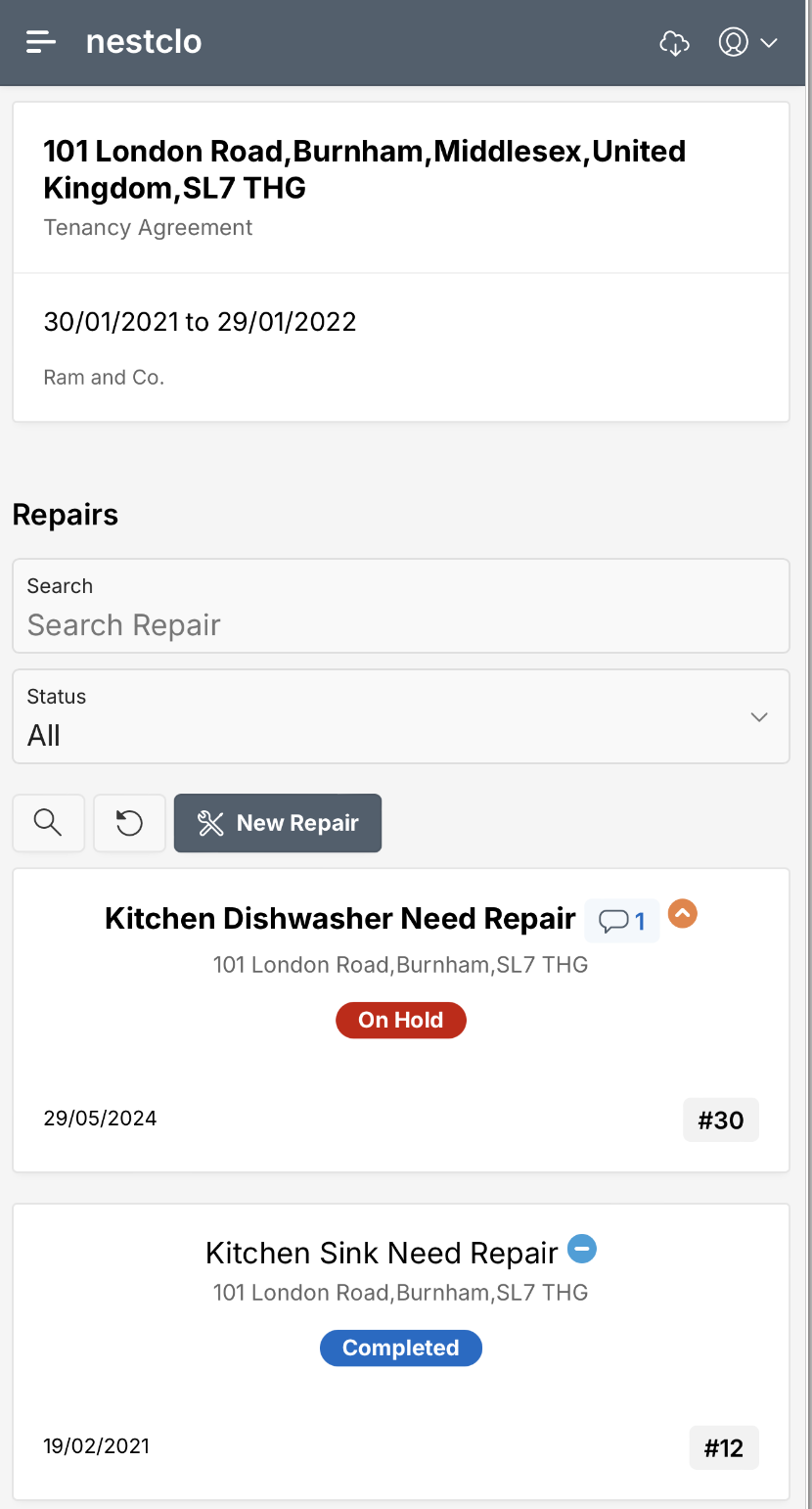
You can:
- Monitor repair statuses in real time.
- Tap on a job to expand details.
- Use the New Repair button to submit new issues.
Enabling Access to Tenant App
Pre-requisites
- Application invite can be only be sent to a Tenant with an active tenancy i.e. Tenant status must be
On Let. - Tenant record must have a valid email address specified. Tenant Email will be used to send an application access invite, and will act as Tenant’s application Username.
- Tenant record must have a valid Phone number specified. Phone number will be used to send a verification code during nestclo login process. Phone format must include country code e.g. +441234567890
Send Application invite
- Navigate to Contacts module, and search for a Tenant record.
- User can also filter the Contacts records based on Application Access criteria i.e.
Invite Not Sent, and click on Search. - Report will show the records for Application Access status as
Invite Not Sent. - Click on Contact Name for respective Tenant to view Tenant Information.
- Click at Actions > Send Application Invite to send the application invite to Tenant.
- If the Tenant record has a valid phone number specified in Phone 1 field, and valid email address specified in Email field, application access invite will be sent. Otherwise, system will show an error to review email and/or phone number and retry.
- Application Access attribute will show as
Invite Sent. - Tenant will receive two emails at their registered email address. First email will contain application link and second email will contain a username and a temporary password.
Activate Account
- Tenant need to login to nestclo to activate their account, using the username and temporary password provided in the invite email.
- After successful login using username and temporary password, tenant will receive a 6 digit verification code at their registered phone number. Tenant need to enter the verification code when prompted by the application, and click on the Verify button.
- During first time login, application will prompt the Tenant to reset their password.
- After successful password reset, user will be receive Tenant App dashboard page.
Resend Application Invite
If an application invite had already been sent to the Tenant to register on the application, and Tenant didn’t get an opportunity to login into the application to activate the account, an agent can re-send the application invite by following below mentioned steps:
- Navigate to Contacts module, and search for a Tenant record.
- User can also filter the Contacts records based on Application Access criteria i.e.
Invite Sent, and click on Search. - Click on Contact Name for respective Tenant to view Tenant Information.
- Click at Actions > Re-Send Application Invite to send the application invite to Tenant.
Disable Application Access
A tenant’s application access must be disabled manually, as it is not automatically revoked upon tenancy expiration. To disable the tenant’s application access, follow the steps outlined below:
- Navigate to Contacts module, and search for a Tenant record.
- User can also filter the Contacts records based on Application Access criteria i.e.
Enabled, and click on Search. - Click on Contact Name for respective Tenant to view Tenant Information.
- Click at Actions > Disable Access to disable the Tenant’s application access.
Enable Application Access
If a tenant’s application access has been disabled for any reason, it can be restored by following the steps outlined below:
- Navigate to Contacts module, and search for a Tenant record.
- Click on Contact Name for respective Tenant to view Tenant Information.
- Click at Actions > Enable Access to enable the Tenant’s application access.
Enable Access option will only appear if Tenant status is
On Let.
Need Help?
If you experience any issues or need support, please contact your property manager or reach out to Support.