Purchase Orders
The Purchases module allows you to manage supplier orders, record goods receipt, and track billing activities efficiently.
Purchase Order Types
Different types of Purchase Orders (POs) support various business needs. Choosing the correct PO type ensures better tracking, compliance, and financial control. nestclo supports the following two PO types:
Standard Purchase Order
A Standard Purchase Order is the most commonly used type. It is used for one-time purchases where the details — items, quantities, prices, and delivery dates — are clearly known at the time of order.
Use case examples:
- Ordering 100 units of packaging supplies from a vendor.
- Buying office furniture for a specific branch.
Key Characteristics:
- Fixed items and quantities
- Single delivery
- One-time billing and fulfillment
Standing Purchase Order
A Standing Purchase Order is designed for recurring purchases over a set period, often with variable quantities or delivery schedules. Standing POs help reduce administrative overhead by avoiding repeated entry of identical purchase data.
Use case examples:
- Weekly delivery of fresh produce for a restaurant.
- Monthly supply of printer paper for the office.
Key Characteristics:
- Flexible delivery schedules
- Recurring billing
- Often linked to a budget or contract limit
Standing Orders are useful for recurring purchases from the same supplier.
Purchase Order Lifecycle
The following diagram shows the various stages in the purchase order workflow:
Purchase Order Status Description
| Status | Description |
|---|---|
| Draft | The order is being created and not yet finalized. Can be edited or deleted. |
| Issued | The order has been finalized and sent to the supplier. No longer editable. |
| Active | Items have started arriving against the order but are not fully received. |
| Received | All ordered items have been received. Waiting for billing or invoicing. |
| Billed | Supplier bill(s) have been logged against this order. |
| Void | The order has been cancelled and is no longer valid or actionable. |
Dashboard Overview
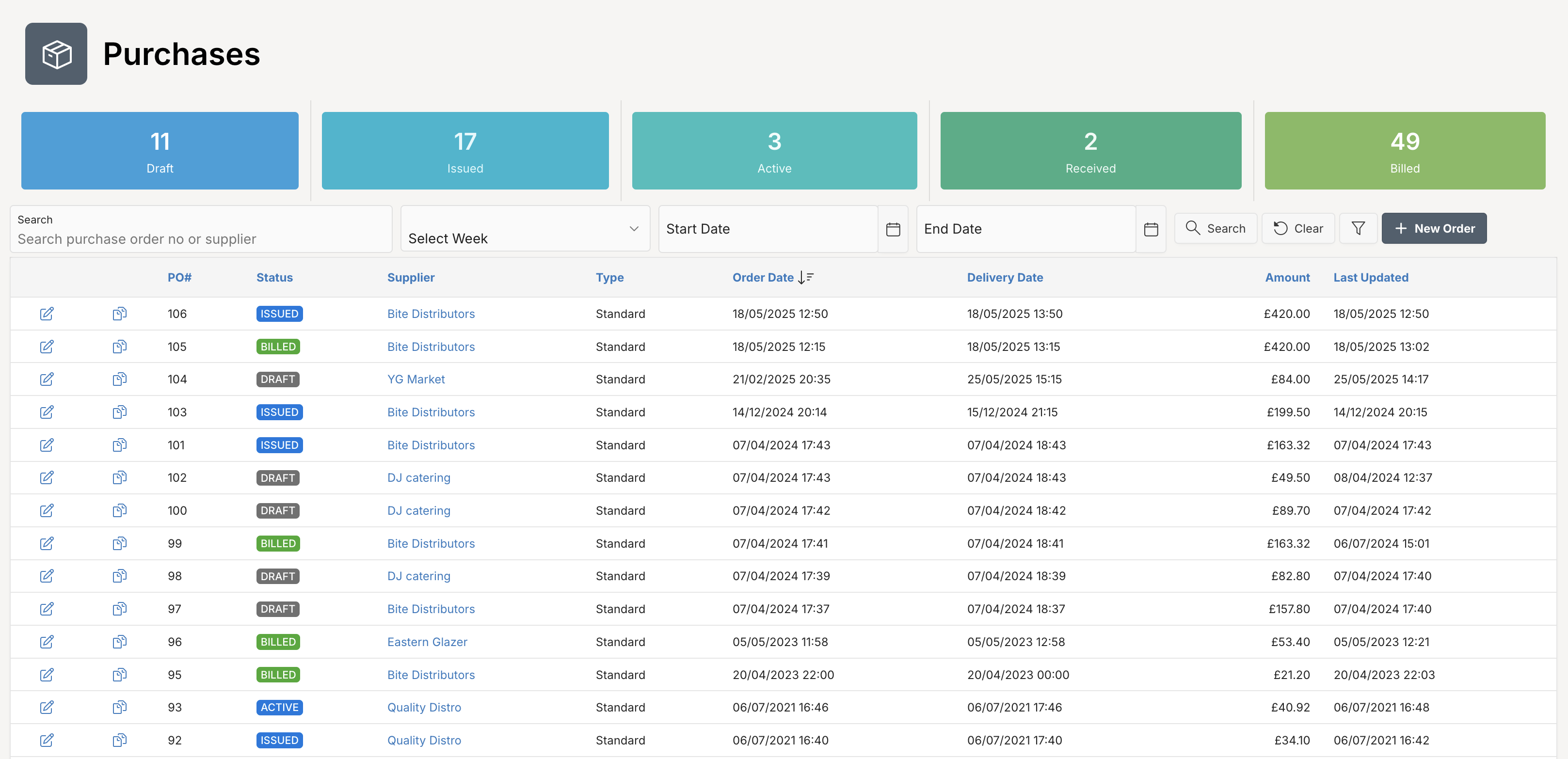
The Purchases Dashboard provides a centralized view of all purchase orders in the system. At the top, status tiles display the total number of purchase orders in each stage, offering quick insights into your procurement pipeline. This dashboard helps streamline purchase order management and track progress at a glance.
Usage Tips
- Filter Orders: Click a status tile to display Purchase Orders matching that status.
- View Orders List: Scroll down to see a detailed list of all orders, including key information such as status, order type, order date, contact, and amount.
- Search Orders: Use the search bar to quickly find orders by supplier name, order number, or other keywords. Use week or date ramge filters to search orders for specific period.
- More Filters: Click the button to open a left-side panel to apply additional filters to refine purchase order list.
- Create New Order: Click the New Order button to initiate a new purchase order.
- Edit Order: Use the icon to edit any order.
- Copy Order: Use the icon to copy any order. The new order will be created in
Draftstatus.
Creating a Purchase Order
To add a new Purchase Order, click at New Order button. To create or edit a order, you’ll enter the following information:
To create a new purchase order:
- Go to Purchases from the sidebar.
- Click + New Order.
- Fill in the required details such as Order Type, Supplier, Bill To, Ship To, and line items.
- Add any Additional Charges or Notes for the supplier.
- Click Save to save the order as a draft, or Actions → Mark as Issued to send the order.
Fields Overview
You must fill in required fields, marked with a red asterisk (*).
| Attribute | Description |
|---|---|
| Order Type | Choose between Standard or Standing order types. |
| Order Date | The date and time the purchase order is created. |
| Delivery Date | Expected date and time for receiving goods. |
| Supplier | Vendor from whom goods/services are ordered. |
| Bill To | The billing entity or location. |
| Ship To | The delivery destination. |
| Order Reference | Optional field for entering an external reference. |
| Shipment Preference | Optional field for specifying delivery instructions. |
| Warehouse | Designated storage location for received goods. |
| Order Lines | Line items including item, quantity, unit price, tax and total. |
| Additional Charges | Additional costs like delivery or disposal. |
| Amount | Displays the total order value including charges and tax. |
| Notes | Optional note or message to supplier. |
| Terms and Conditions | Terms associated with the order. |
Goods Receipt
This tab shows details of received goods, including any discrepancies or issues with the delivery. It’s crucial for accurate inventory management and billing. Click at icon to edit any goods receipt.
Fields Overview
| Attribute | Description |
|---|---|
| Receipt Date | Date and time the goods were received. |
| Delivery Reference | Reference provided by the supplier for the shipment. |
| Item Name | Name of each item received. |
| Quantity Received | Number of units physically received. |
| Quantity Missing | Items that were expected but not delivered. |
| Quantity Damaged | Items received in damaged condition. |
| Supplier Batch | Batch or lot number provided by the supplier. |
| Expiry Date | Expiration date of perishable goods (if applicable). |
Bills
The Bills tab in the Purchase Order view provides a comprehensive summary of all bills associated with a specific purchase order. This tab becomes available once the purchase order is marked as Issued.
It allows you to track the billing lifecycle and ensures visibility into what has been invoiced by the supplier. Each listed bill includes following financial and status-related information.
Fields Overview
| Attribute | Description |
|---|---|
| Status | Current payment status (e.g. Draft, Approved, Paid). |
| Invoice# | Unique identifier for the supplier’s invoice. |
| Supplier | Vendor associated with this purchase. |
| Due Date | Date by which the payment must be completed. |
| Invoice Date | Date the invoice was issued. |
| Net Amount | Total invoiced amount excluding tax or discounts. |
| Paid Amount | Amount paid against the invoice. |
| Balance | Remaining amount to be paid. |
| Days Overdue | Number of days past the due date (if unpaid). |
| Payment Method | Method used to settle the payment (e.g., Cheque). |
Tip: You must first receive the goods (via the Actions > Receive option) before logging a bill to ensure accurate quantity and pricing alignment.
Documents
The Documents tab displays all files uploaded to this order.
To add supporting documents, click Upload Document.
In the upload dialog, you can either drag and drop files or browse to select them manually (Allowed document types - PDF, Word, Excel; max document size 15MB).
Activity
Displays system-generated logs and interactions related to the order lifecycle.
Purchase Order Actions
The Actions menu provides quick access to key operations related to the selected order:
| Attribute | Description |
|---|---|
| Preview | The Preview option allows users to view a PDF preview of the selected order before taking further action. This helps ensure the order appears exactly as intended before sending or printing. |
| Send via SMS | The Send via SMS option allows users to view a SMS preview of the selected order and then send it to the supplier. |
| Copy | The Copy option allows users to copy the order to a new order in Draft status. |
| Edit Order | Opens the order in edit mode, allowing you to modify order details such as items, dates, and amounts. |
| Mark as Issued | Finalizes the draft purchase order and changes its status to Issued. Once issued, the order becomes read-only and is ready for further processing like receiving items or billing. |
| Mark as Void | Cancels an already issued purchase order. This action prevents any further transactions (receipts or bills) from being recorded against the order. |
| Delete | Permanently removes the draft purchase order from the system. This action is only available for orders in Draft status. |
| Receive or Receive All | These options allows user to record goods receipt. These actions are only available for orders in Issued or Active status. |
| Bill All | Creates a bill for all items in the purchase order that haven’t already been billed. Use this when you’ve received all the goods or services and the supplier invoice covering the entire order. This action is only available for orders in Received status. |
| Bill Received | Creates a bill for received items in the purchase order that haven’t already been billed. This action is only available for orders of type Standing and in Active or Received status. |
| Mark as Billed | Manually updates the Purchase Order status to Billed without creating a bill document. Use this option to close the order when pending goods or services are not expected to be delivered. |
Issue a Purchase Order
You can issue a Purchase Order (PO) to suppliers using either Email or SMS. You can access these options from the Actions menu on the Purchase Order screen.
Both Email and SMS methods rely on the supplier having up-to-date contact information in the system.
Issue via Email
- Navigate to the desired Purchase Order in your system.
- Click on Actions > Preview
- A PDF Preview Dialog will appear, displaying the formatted PO.
- Review the document and click on Email.
- The PO will be emailed to the supplier’s registered email address.
Ensure that the supplier has a valid email address registered to avoid delivery failures.
Issue via SMS
- Navigate to the relevant Purchase Order.
- Click on Actions > Send via SMS.
- A SMS Preview Dialog will appear, showing the content of the SMS message.
- Review the message. (Note: You cannot edit the SMS content as it is system-generated based on the PO information.)
- Click Send to deliver the message to the supplier’s registered mobile number.
The SMS content is generated automatically to ensure consistency and compliance.
Goods Receipt
The Goods Receipt function is used to record the arrival and inspection of goods linked to a Purchase Order.
This process ensures your stock records are accurate and helps reconcile deliveries against the original order. You can receive items in multiple batches. Partial deliveries are supported and tracked until the full order is fulfilled.
Always issue a PO before receiving goods to ensure accurate inventory tracking.
How to Receive Goods
To receive goods, go to Purchase Order > Actions and then click Receive. This option is available only when the PO status is either Issued or Active.
You’ll enter the following information to capture the delivery summary.
Fields Overview
You must fill in required fields, marked with a red asterisk (*).
| Attribute | Description |
|---|---|
| Receipt Date | Date and time goods were received (auto-filled but editable). |
| Purchase Order # | Automatically linked to the PO being processed. |
| Supplier | The supplier name associated with the order. |
| Received By | Field to enter the name of the person who received the goods. |
| Delivery Reference | Optional reference provided by the delivery party (e.g., invoice, DO #). |
| Notes | Additional remarks regarding the delivery or condition of items. |
Item’s delivery details can be logged in the Items section containing following fields:
| Attribute | Description |
|---|---|
| Items | List of ordered items from the PO. |
| Order Quantity | Quantity originally ordered for each item. |
| Pending Quantity | Remaining quantity not yet received. |
| Quantity Received | Amount physically received in this session. |
| Quantity Missing | Amount that was expected but not delivered. |
| Quantity Damaged | Quantity received but found damaged on inspection. |
| Supplier Batch Reference | Batch or lot ID provided by the supplier (optional). |
| Expiry Date | Applicable for perishable items to track shelf life. |
| Comments | Optional field for additional notes per item. |
Tip: Double-click any field or use the Edit button to update entries.
When to Use Receive Function
- You’ve physically received all or part of an order.
- You need to track item condition (e.g., damage, expiry).
- You’re preparing for billing and inventory update.
Once saved, the data feeds into your inventory system and is used for invoice verification.