Items
The Items module is where you manage the actual products, goods, or services that your business sells or purchases. From tracking inventory and pricing to uploading documents and managing tax details — this section gives you full control and visibility.
Item List View
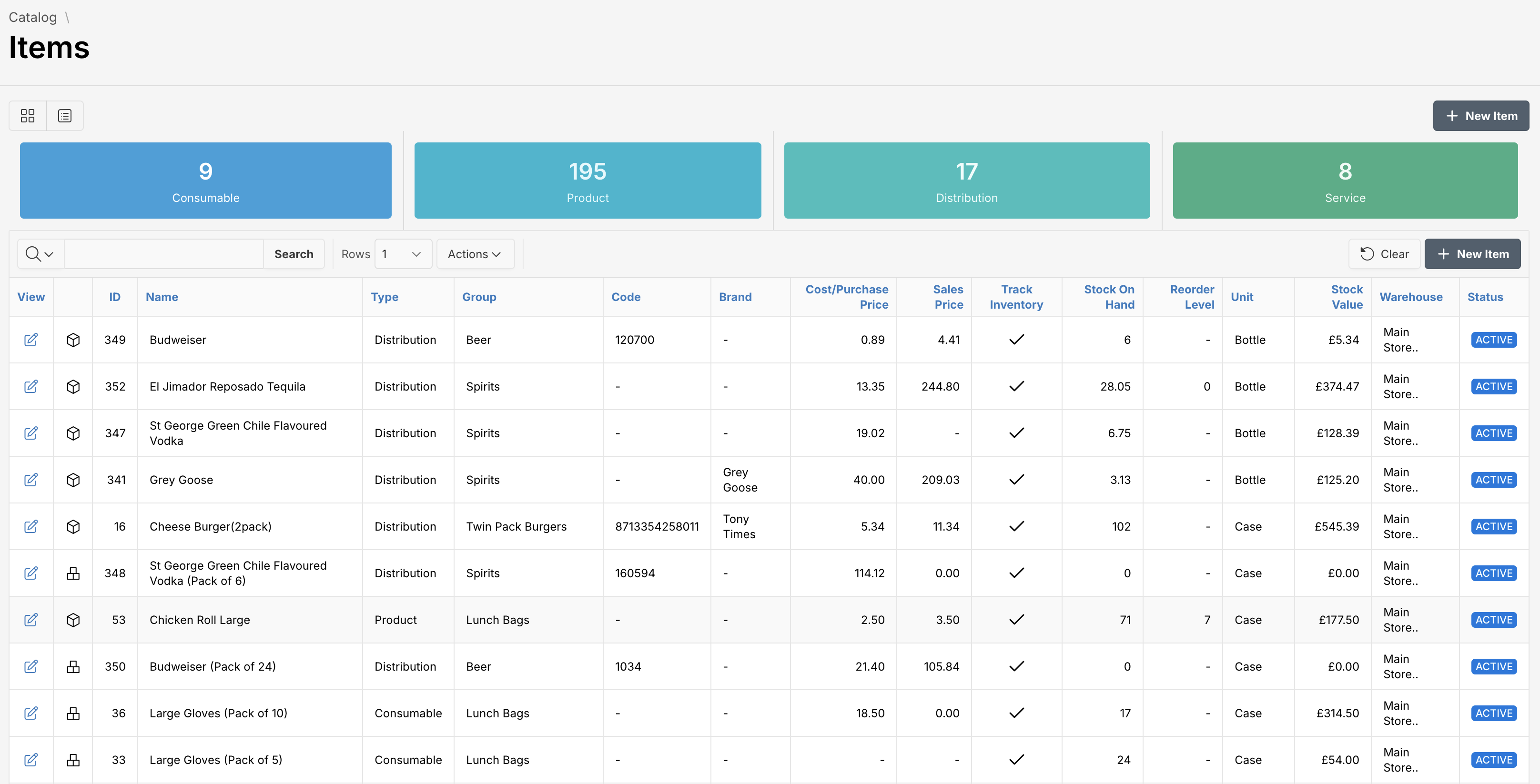
Navigate to Catalog > Items to view your entire inventory. You can toggle between list or card views and quickly search or filter by type, status, or warehouse.
Adding a New Item
To add a new item, follow these steps:
- Click the New Item button at the top right corner of the page.
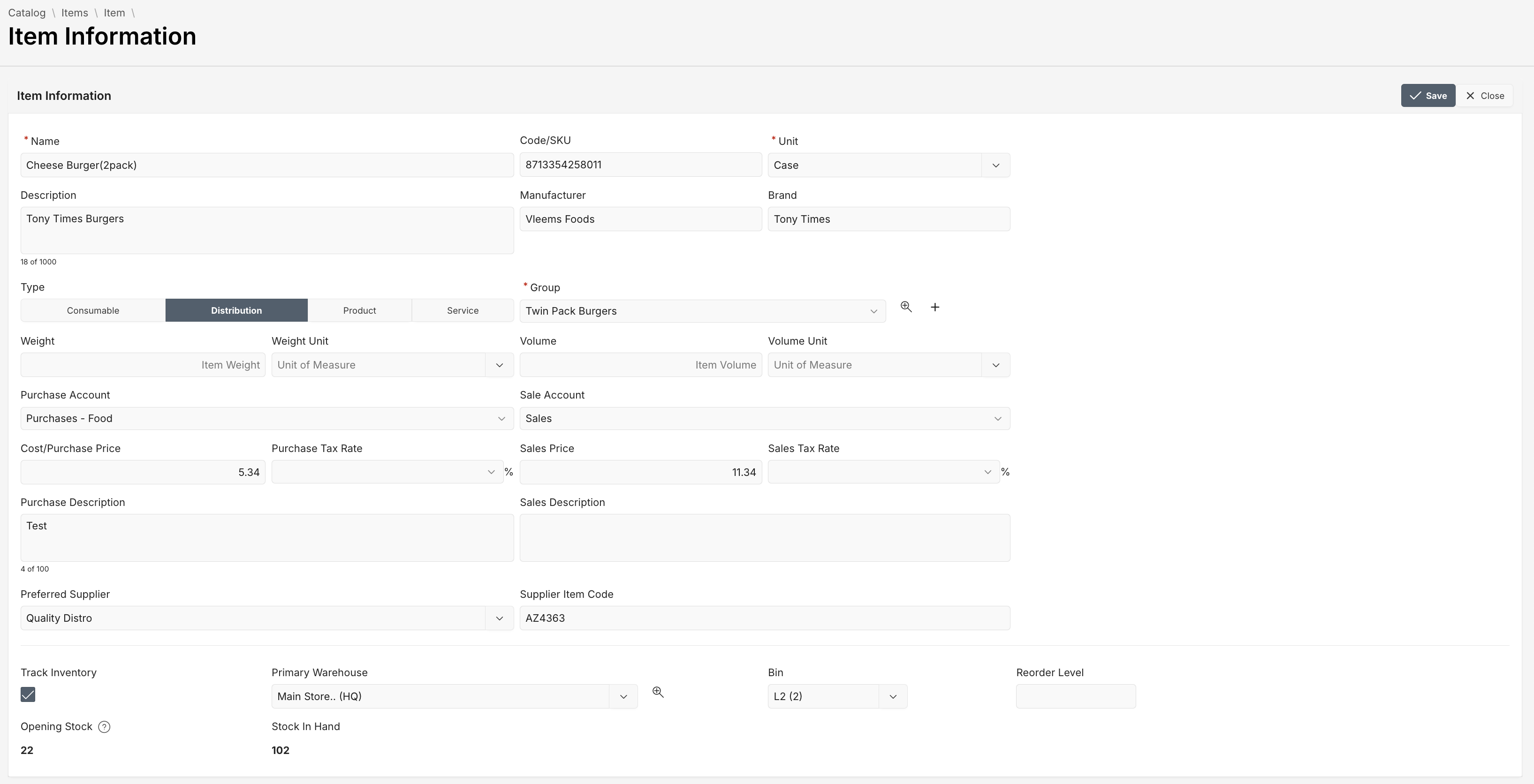
- Update the details in the Item Information form.
- Once all necessary fields are filled, click the Save button in the upper-right corner. To discard changes, select Close.
Fields Overview
You must fill in required fields, marked with a red asterisk (*).
| Attribute | Description |
|---|---|
| Name * | Full name of the item. Example: Cheese Burger (2pack) |
| Code/SKU | Unique internal stock keeping unit |
| Unit * | The standard unit for purchase/sale (e.g., Bottle, Case) |
| Type | Classifies the item as Product, Service, Distribution, or Consumable |
| Group * | Categorization group for reporting and filtering |
| Manufacturer / Brand | Details about who made or branded the product |
| Purchase/Sales Account | Default General Ledger accounts for transactions |
| Cost/Purchase Price | The cost incurred or amount paid per unit |
| Sales Price | The price per unit for customers |
| Tax Rates | Applicable purchase or sales tax rate |
| Preferred Supplier | The vendor from whom the item is typically sourced |
| Supplier Item Code | Unique supplier-provided stock keeping unit |
| Track inventory | Whether this item’s stock levels are tracked |
| Primary Warehouse | Default storage location |
| Bin | Physical location within a warehouse |
| Reorder Level | Minimum threshold before restocking is recommended |
| Opening Stock | Stock level when item was first added |
| Stock In Hand | Current physical quantity available in the warehouse |
By managing your item data comprehensively, your operations become more predictable, traceable, and scalable.
Tips
- Use
Track Inventoryfor items with physical stock. Disable for services or non-stock items. - Assign a
Reorder Levelfor automated low-stock alerts.
View Item Information
View or update information information seamlessly:
- Click the edit icon next to any item to view Item information.
Searching and Filtering Items
Quickly find items using search and filtering:
- Enter details in the Search field and click Search.
- Apply additional criteria by clicking Actions.
- Click Clear to reset the search results.
Last updated on