Price List
The Price List module allows you to configure and manage pricing strategies across your catalog. Whether you’re running a promotion, adjusting rates for specific contacts, or implementing conditional changes, this feature makes pricing flexible and trackable.
Price List Types
Each Price List is associated with a specific contact—either a customer or a supplier—or a group of contacts. It remains valid for a defined duration, during which it governs the applicable item pricing.
There are two primary types of price lists:
Sales Price List
A Sales Price List defines the selling prices of items for a specific customer.
An item can have different sales prices for different customers, allowing for personalized pricing strategies.
This type of price list ensures that invoices are generated using the agreed-upon prices, simplifying billing and maintaining consistency.
Purchase Price List
A Purchase Price List defines the purchase prices of items from a specific supplier.
Similar to sales pricing, items can have different purchase prices based on the supplier.
This price list type helps streamline the creation of supplier bills, ensuring that procurement is aligned with pre-negotiated rates.
💡 Use price lists to automate pricing in invoices and bills, reduce manual errors, and support flexible pricing models.
Managing Price Lists
Navigate to Catalog > Price Lists to manage price lists.
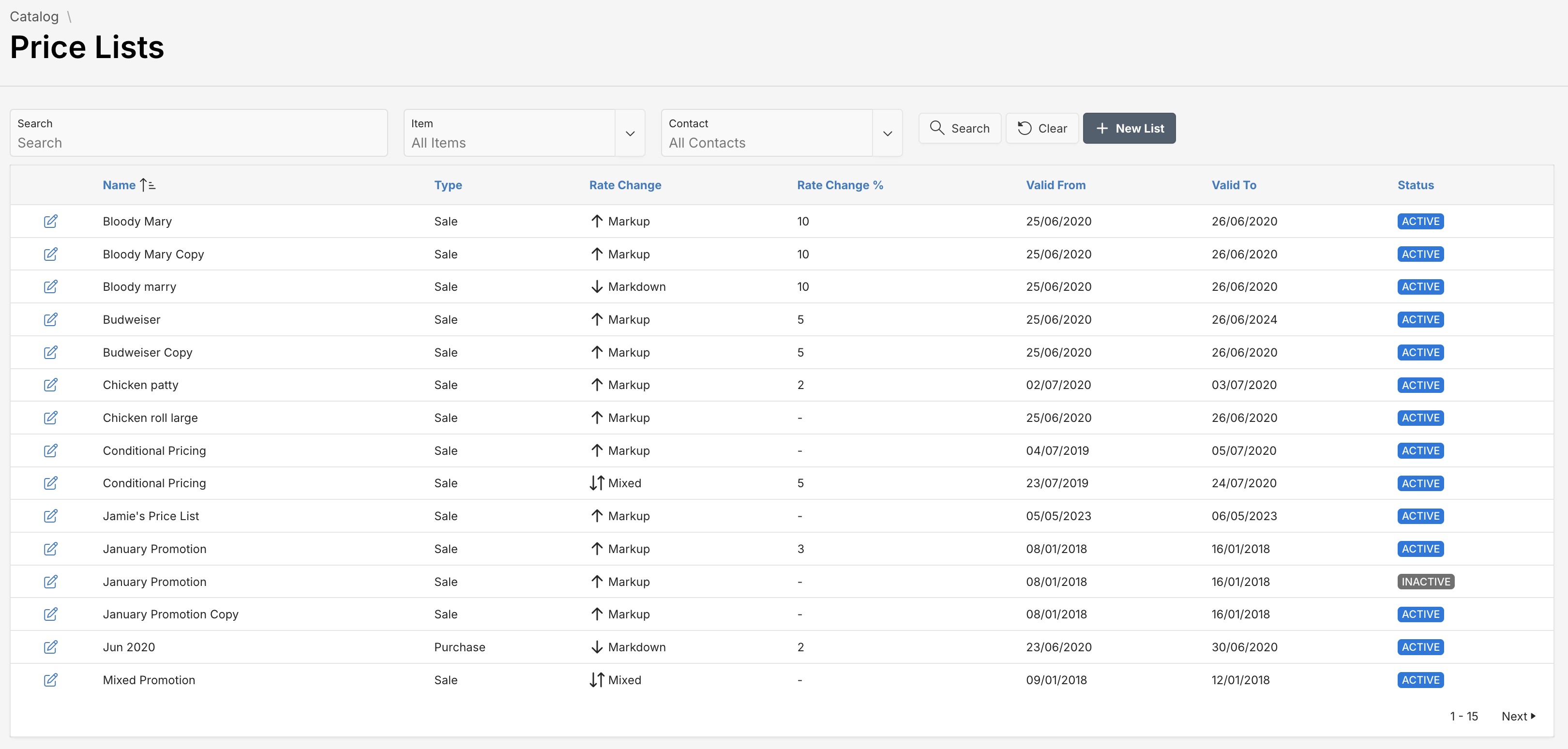
From the Price Lists dashboard, you can:
- Search for an existing Price Lists
- Create a new Price List by clicking at New List button.
- Click at Edit link to edit an existing price list.
Adding a New List
To add a new list, follow these steps:
- Click the New List button at the top right corner of the page.
- Add the details in the Price List Information form.
- Once all necessary fields are filled, click the Save button in the upper-right corner. To discard changes, select Close.
Fields Overview
You must fill in required fields, marked with a red asterisk (*).
| Attribute | Description |
|---|---|
| Name | The title of the price list. This is a required field. |
| Type | Choose between Purchase and Sales to define the context of the price change. |
| Change | Set the change type: Markup, Markdown, or Mixed (used for customized pricing strategies). |
| Change Percentage | Automatically applies a percentage increase or decrease to prices. Only applicable to uniform changes. |
| Valid From | Start date and time when the price list becomes active. |
| Valid To | End date and time when the price list expires. |
| Description | Optional field to describe the purpose or scope of the price list. |
| Contacts | Assign one or multiple contacts to whom this pricing applies. |
| List Items | The individual product entries, each with original price, list price, and optional unit constraints. |
Working with Items
Each price list allows you to define pricing at the item level:
| Column | Description |
|---|---|
| Item ID | Unique identifier for the product. This field is read-only. |
| Item | Search or select the Product name from the drop-down list. |
| Original Price Rate | The current base price of the item. This field is read-only. |
| List Price Rate | The updated price according to the price list. |
| Min Units / Max Units | Define conditions for quantity-based pricing (optional). |
Assigning Contacts
Under the Contacts tab:
- Assign the price list to specific contacts or businesses.
- Use the dropdown to select a contact and click Assign Contact.
- Remove a contact using the trash icon next to their name to unassign the contact from the Price List.
Price List Actions
The Actions dropdown in the edit view allows:
- Copy — Clone an existing price list configuration.
- Mark as Inactive — Temporarily disable the price list without deleting it.
A price list with overlapping validity dates will override previous ones for the assigned contacts or items.