Contract Management
Managing property leases just got easier with our Contract module. Whether you’re handling landlord leases, tenancy agreements, or public sector leases, this interface gives you full visibility and control over the lifecycle of every contract.
Contract Lifecycle
The following diagram shows the various stages in the contract workflow:
Contract Status Description
| Status | Description |
|---|---|
| Draft | The contract is being created and has not yet been finalized or shared. |
| Issued | The contract has been finalized internally and shared with the counterparty. |
| Negotiation | Both parties are actively discussing and making changes to the contract. |
| Active | The contract has been agreed upon and signed. It is currently in effect. |
| Expired | The contract has reached its end date and is no longer active. |
| Void | The contract has been invalidated before becoming active. |
Contracts Dashboard
The Contracts page offers a birds-eye view of all contracts segmented by status:
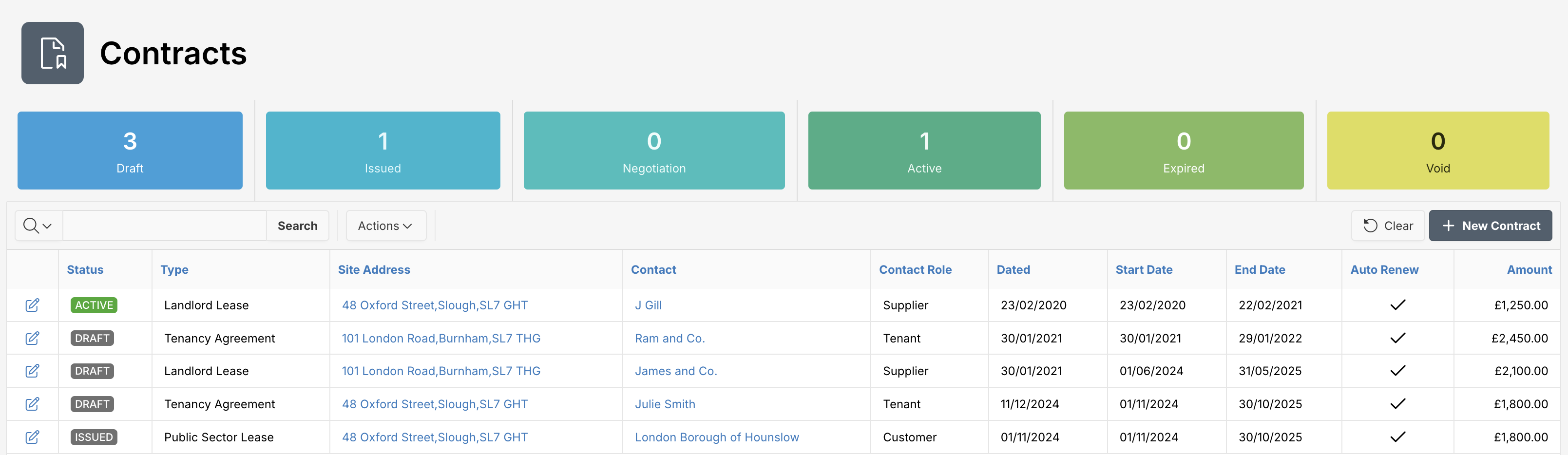
Use the filters to drill down into contract types and statuses quickly. Each row gives instant access to edit, view, or perform actions like issuing or assigning tenants.
Adding a New Contract
To add a new Contract, click at New Contract button.
Fields Overview
You must fill in required fields, marked with a red asterisk (*).
| Attribute | Description |
|---|---|
| Party | The main contact or legal entity in the agreement. |
| Role | Indicates whether the contact is a Supplier, Tenant, or Customer. |
| Agreement Type | Describes the nature of the lease (e.g. Landlord Lease). |
| Agreement Date | The official date the agreement was signed. |
| Start Date / End Date | Duration of the contract. |
| Auto Renew | Whether the contract auto-renews at term end. |
| Reference No | System-generated reference identifier. |
| Tax Mode | Displays whether the contract is taxable. |
| Notice Period Days | Required notice duration for termination. |
| Renewal Reminder Date | Notification date before contract renewal. |
| Invoice Mode | Shows how invoices are issued (e.g. Advance). |
| Payment Method | Default payment channel like BACS. |
| Agreement Amount | Monthly or recurring rent amount. |
| Repair Payment Party | Indicates who is responsible for repairs. |
| Rent Assured | A flag for guaranteed rent support. |
| Furnishing State | Property furnishing condition (e.g. Furnished). |
Addendums
Need to modify a live contract? Add addendums without altering the original agreement. These are version-controlled and displayed with effective dates for clarity.
View Contract
View or update contract information seamlessly:
- Click the edit icon next to any contract to view Contract information.
Contract Details
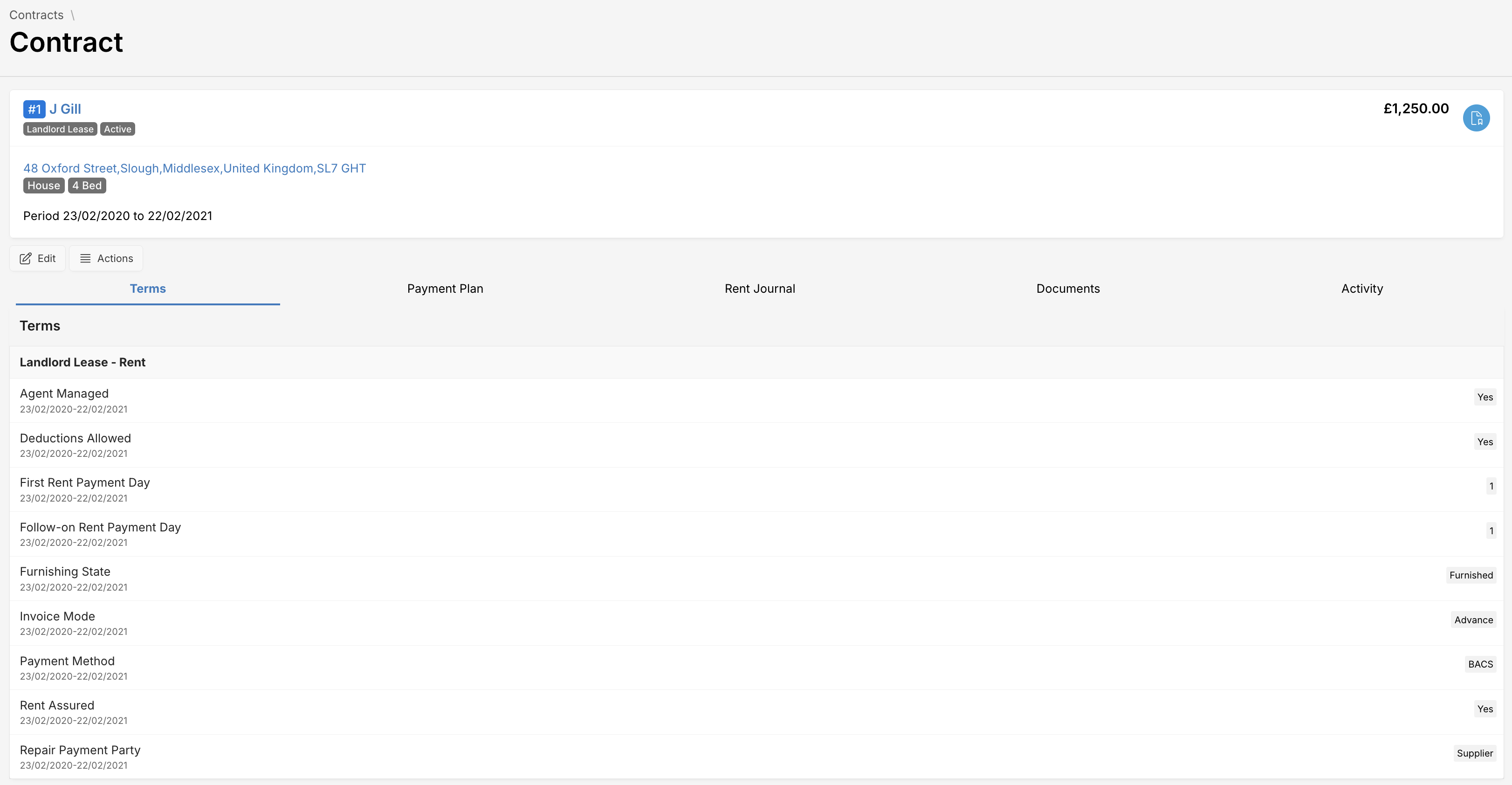
Clicking into any contract opens the main Contract Details panel. You’ll find all vital information clearly grouped under following tabs:
- Terms
- Payment Plan
- Rent Journal
- Documents
- Activity
Edit Contract Information
To edit a contract, click the Edit button on the overview panel. This opens multiple tabs for a detailed update.
Terms
The Terms section allows users to define and manage key contractual clauses by selecting from a set of predefined options within the contract template. These terms ensure consistent application of rental conditions and compliance across tenancy agreements.
Users can add or modify terms at the Contract Template level and then apply those terms to individual contracts. This promotes standardization while allowing for flexibility based on specific agreements.
How It Works
- Define contract terms within a Contract Template.
- When creating or editing a contract, apply relevant terms from the template.
- Customize applicable values (e.g., furnishing status, payment method) as needed.
Fields Overview
| Attribute | Description |
|---|---|
| Agent Managed | Indicates if the property is managed by an agent (Yes/No). |
| Deductions Allowed | States whether deductions (e.g., for repairs or damages) are permitted. |
| First Rent Payment Day | The due date for the initial rent payment. Typically set to the contract start date. |
| Follow-on Rent Payment Day | The recurring due date for subsequent rent payments (e.g., every 1st of the month). |
| Furnishing State | Describes the furnishing status of the property (e.g., Furnished, Unfurnished). |
| Invoice Mode | Defines when the invoice is generated, such as Advance or Arrears. |
| Payment Method | The chosen payment channel, e.g., BACS, Direct Debit. |
| Rent Assured** | Specifies if the rent is contractually guaranteed. |
| Repair Payment Party | Identifies who is responsible for repair payments (e.g., Tenant, Supplier). |
Tip: Use the Edit button to quickly modify term values specific to a contract without affecting the base template.
For consistency and clarity, it’s recommended to define and maintain templates centrally before applying them to multiple agreements.
Payment Plan
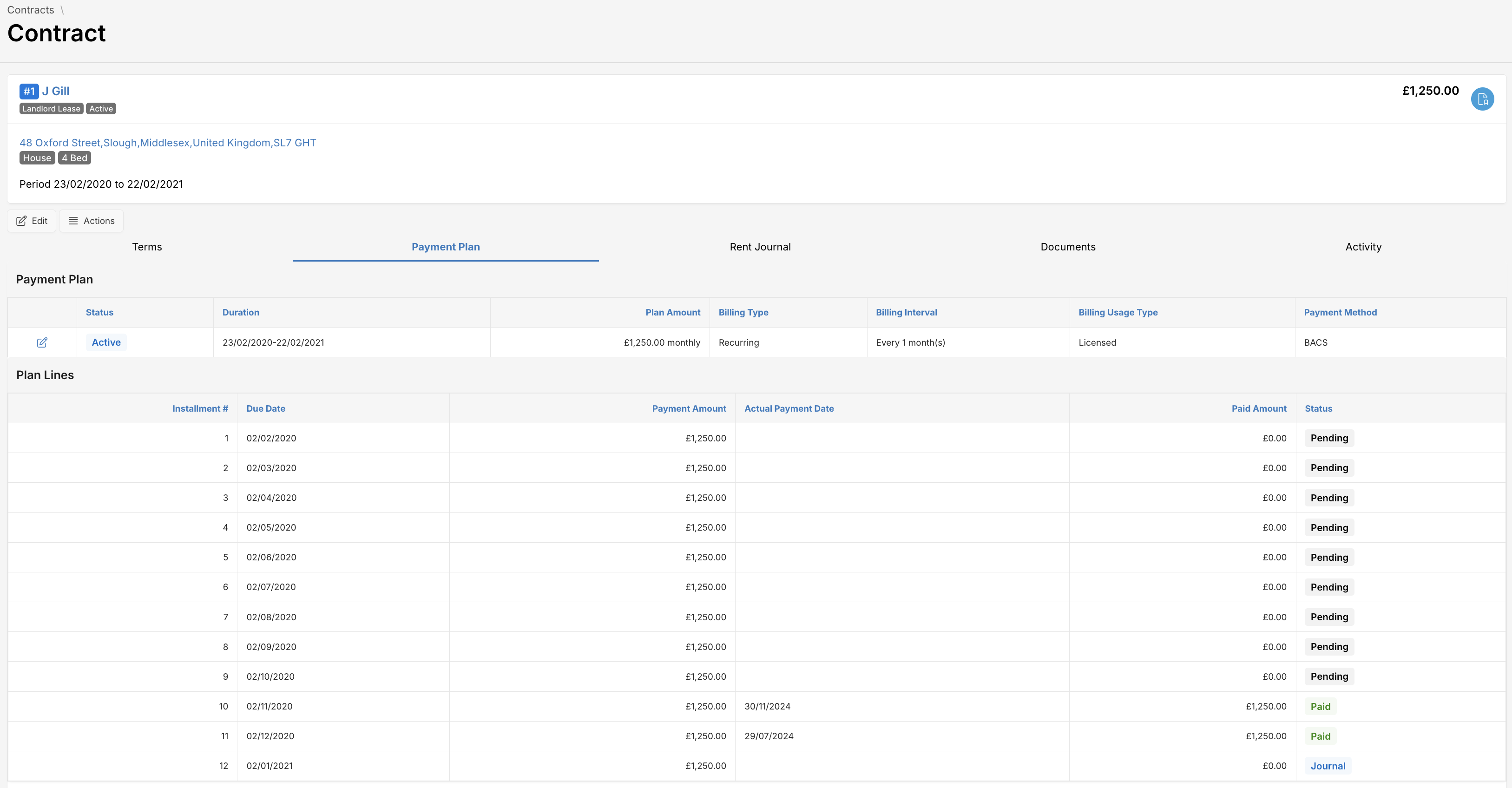
This section outlines the details of the payment plan associated with a tenancy contract. It provides a comprehensive view of the payment schedule, status, and history for a given property.
Plan Summary
The top section provides an overview of the payment plan status and configuration. Below is a breakdown of the attributes displayed:
| Attribute | Description |
|---|---|
| Status | Indicates whether the payment plan is currently active. |
| Duration | The time span the contract is valid, shown as start and end dates. |
| Plan Amount | Monthly payment amount due as per contract terms e.g. rent due for the property. |
| Billing Type | Describes the billing frequency (e.g., recurring or one-time). |
| Billing Interval Count | A numeric value representing the number of intervals between each billing event - 1, 2, etc. |
| Billing Interval | The type of time period used for the interval i.e. how often billing occurs - daily, weekly, monthly, quarterly, yearly. |
| Billing Usage Type | Type of lease agreement, e.g., Licensed. |
| Payment Method | Mode of payment specified, such as BACS, Cash, Cheque, Credit Card, Direct Debit, or Rental Income. |
Plan Lines
This section details the individual monthly payments (installments) and their respective statuses. Each line represents a month’s payment with detailed tracking.
| Attribute | Description |
|---|---|
| Installment # | Sequential number representing each installment. |
| Due Date | The date when the payment is due. |
| Payment Amount | Amount billed for each installment (typically fixed). |
| Actual Payment Date | The date on which the payment was actually made. |
| Paid Amount | Amount received against that installment. |
| Status | Payment status for the installment. Statuses include Pending, Paid, or Journal. |
Payment Status
Following table describes the payment status:
| Status | Description |
|---|---|
| Pending | Payment is pending. |
| Journal | (Applicable for rental contracts only) Rent Journal entry has been created for this installment, including any adjustments, if any. |
| Paid | Installment amount has been paid. |
Adding a Payment Plan
Use the New Payment Plan button to create a payment plan for a specific contract. The Plan Lines will be populated based on the details provided in the payment plan. You can review and adjust the plan payments as needed.
Edit Payment Plan
Click at to view or modify the corresponding Payment Plan.
Rent Journal
The Rent Journal is a financial component of the system that captures and records all rental-related financial transactions for specific Contract. This journal serves as the authoritative source for tracking amounts due, received, and adjusted for both the property supplier (Landlord) and the property customer (Tenant) during a rental period. The Rent Journal ensures:
- Accurate, auditable financial records for all contracts
- Transparency in payments and deductions for both tenants and landlords
- Easy reconciliation with bank transactions and general ledger
This journal is critical for automating rent flow accounting, producing rent statements, and supporting end-of-period reconciliation and reporting processes.
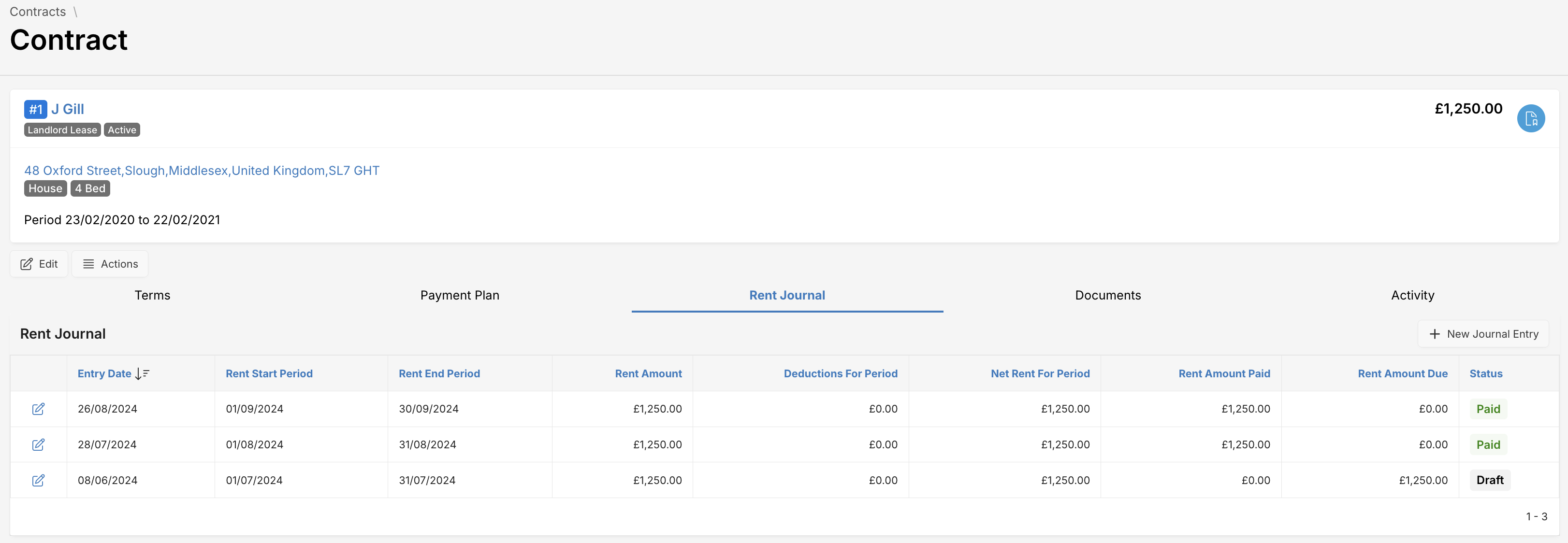
| Attribute | Description |
|---|---|
| Entry Date | Date journal entry was created |
| Rent Start/End Period | Period covered by the payment |
| Rent Amount | Gross amount due |
| Deductions for Period | Discounts or offsets |
| Net Rent for Period | Final payable amount |
| Rent Amount Paid | Total paid for that period |
| Rent Amount Due | Outstanding amount |
| Status | Journal entry status - Draft, Paid |
How It Works
Each time a Contract is initiated or renewed, the Rent Journal is automatically initialized to begin tracking financial activity based on the agreed rental terms.
The Rent Journal records:
- Rent Due from Tenant: The total rental amount the Tenant is obligated to pay for a given period, based on the contract.
- Rent Due to Landlord: The payable amount that the Agency or Operator owes to the Landlord, typically after deducting management fees or agreed charges.
- Adjustments & Deductions:
- Tenant Side: Discounts, arrears carried forward, late fees, or partial payments.
- Landlord Side: Management fees, maintenance charges, vacancy periods, or withheld payments for compliance issues.
Adding a Journal Entry
Use the New Journal Entry button to create a journal entry for specific payment plan installment and add any deductions. Each entry in the Rent Journal includes:
- Contract reference
- Rental period (e.g., monthly, weekly)
- Amounts due (from tenant, to landlord)
- Adjustment details (type, reason, value)
- Net payable/receivable
- Journal status (Draft, Approved, Posted)
Edit Journal Entry
Click at to view or modify the corresponding Journal entry.
Documents
Upload, download, and manage all supporting documents associated with a contract. Any system-generated documents (such as PDF or DOCX files) will automatically appear in this section for easy access and reference.
Activity
The Activity section provides a detailed audit trail for each contract. It records user interactions with the contract, offering visibility into what actions were taken, by whom, and when.
Actions Dropdown
The Actions menu button offers a range of contract lifecycle operations to help manage tenancy records efficiently. These actions allow users to generate documents, update contract states, or assign tenants.
| Attribute | Description |
|---|---|
| Generate Contract | Creates a system-generated contract document (PDF or DOCX) based on the current contract details. This file will be accessible under the Documents tab. |
| Edit | Opens the contract form in edit mode, allowing you to update any contract-specific details, including duration, payment plan, or terms. |
| Mark as Expired | Manually updates the contract status to “Expired”. Useful for closing contracts that have ended but not automatically transitioned. |
| Mark as Void | Voids the contract, indicating that it is no longer valid or was canceled. This action is typically irreversible. |
| Assign Tenant | Links a tenant profile to the contract. This enables tenant-specific billing, documentation, and communication. |
Tip: These actions are permission-based. If you can’t see an option, check your user role or speak to your system administrator.
Still have questions? Reach out to our support team.