Payments Overview
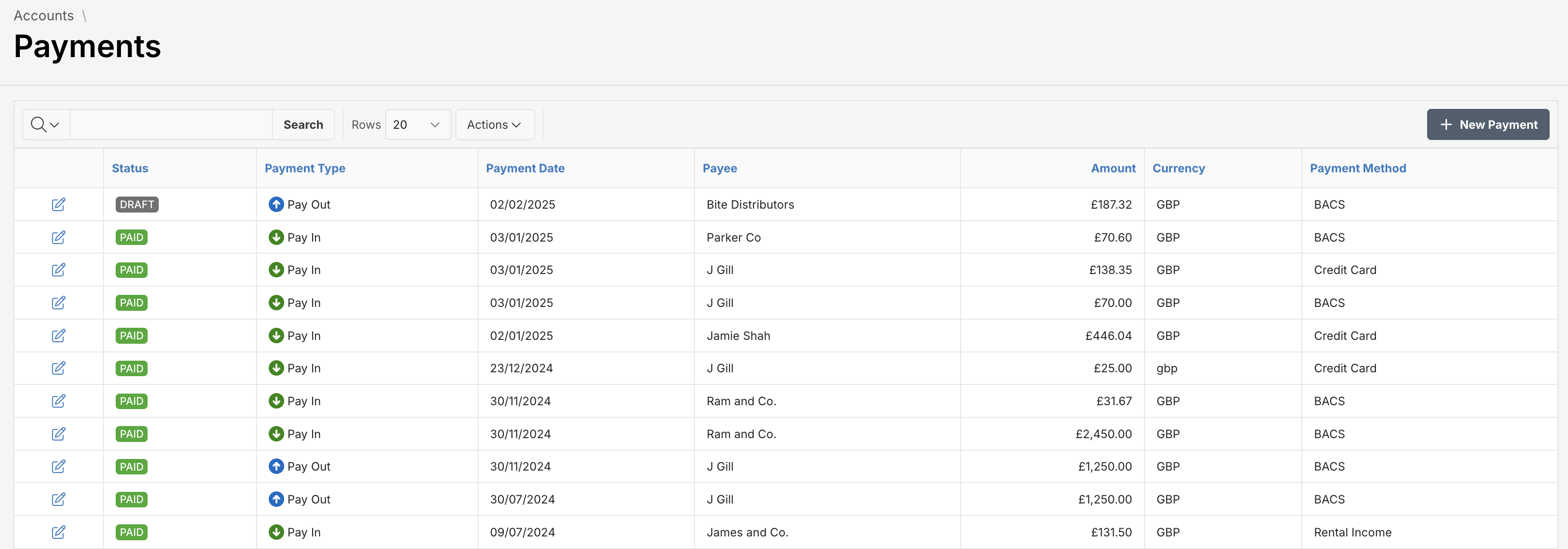
The Payments module helps you manage all incoming and outgoing payments from one place. Whether you’re recording a supplier payment or tracking customer receipts, this feature allows you to do it accurately and efficiently.
Payment Types
You can manage two types of payments:
- Pay Out – payments made to suppliers
- Pay In – payments received from customers
Click the + New Payment button to start a new transaction.
Creating a Payment
The new payment process follows a 3-step wizard:
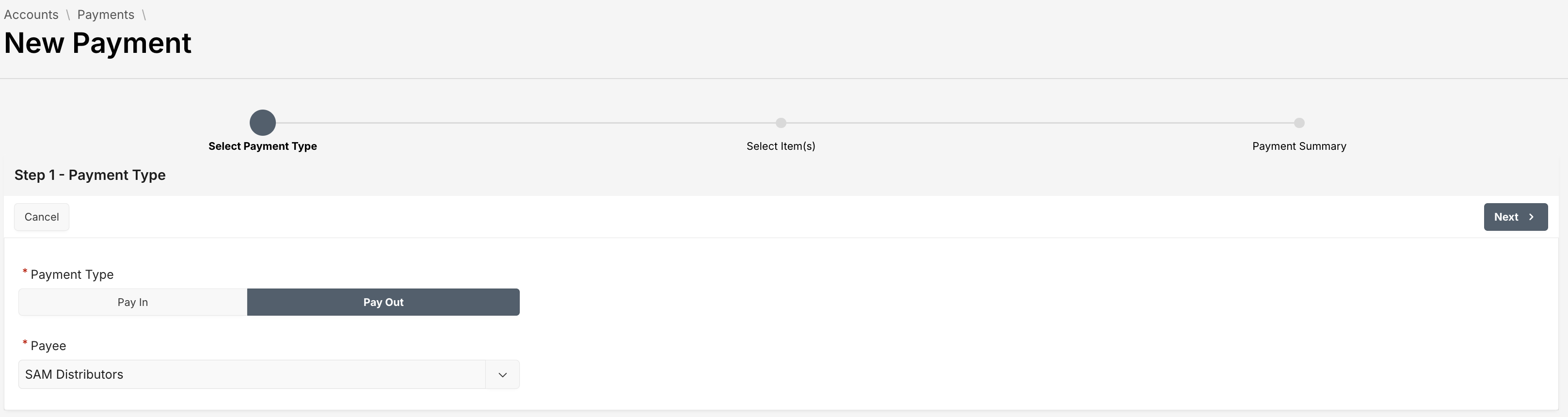
Step 1 - Select Payment Type
Choose whether it’s a Pay In or Pay Out payment and select the relevant Payee.
Step 2 - Select Transactions
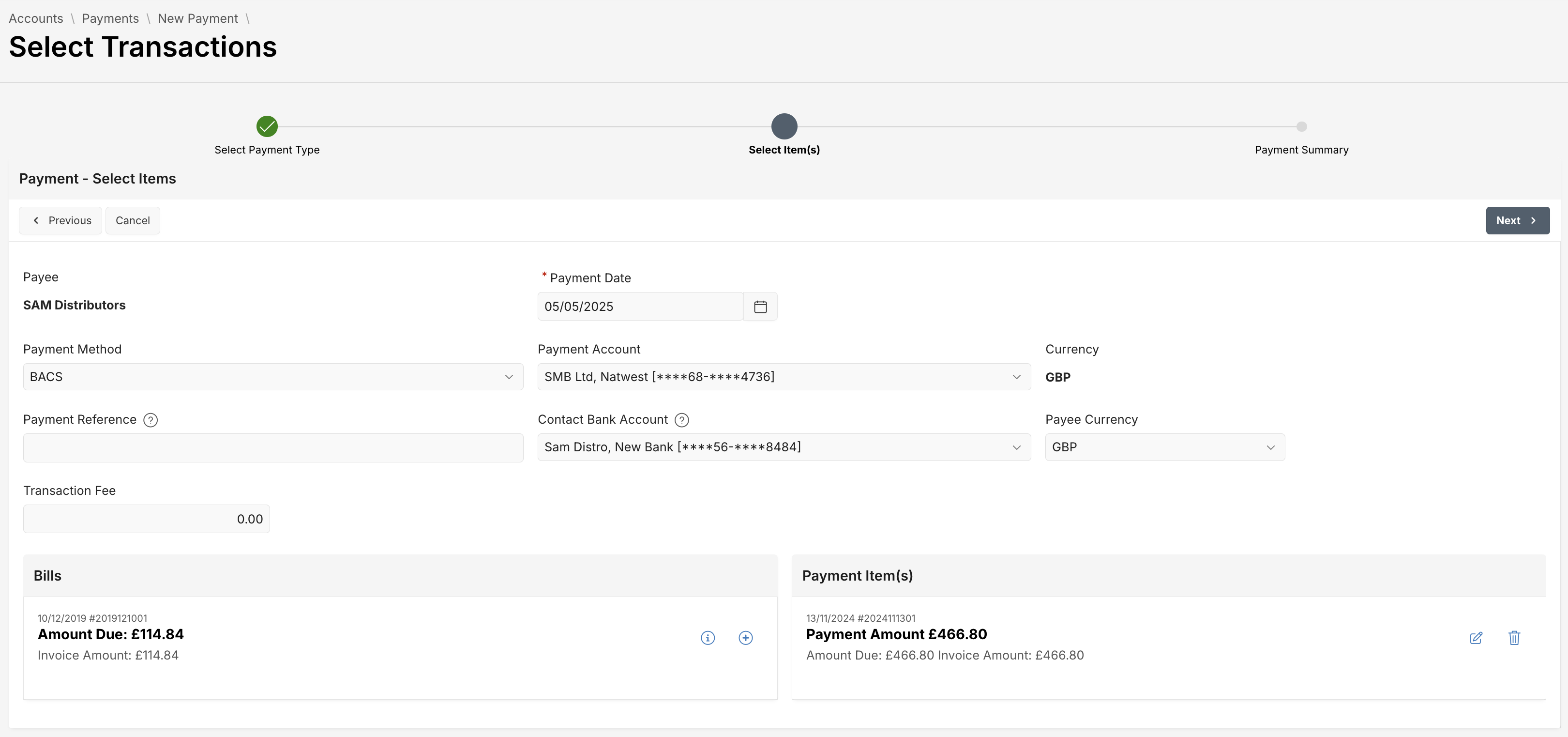
Choose related bills or invoices to pay or receive. You can view detailed invoice info before adding them to the payment.
Update Payment Amount
To update the payment amount e.g. for partial payment, click the icon to open the Edit Payment Amount dialog. Enter the updated amount, then click Update Amount button to apply the changes. The payment amount for the selected bill or invoice will be adjusted accordingly.
Step 3 - Review Summary
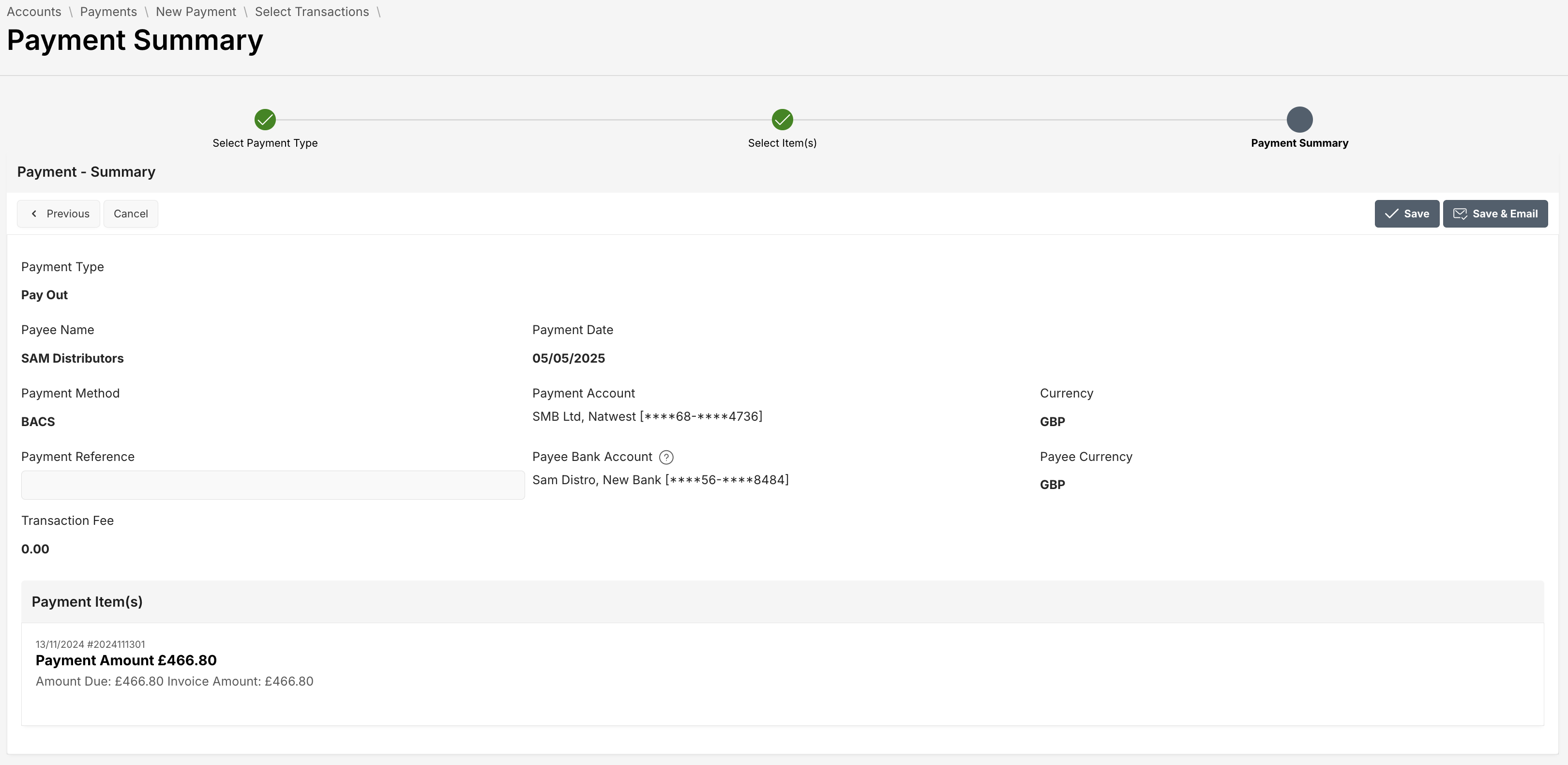
Review all details before finalizing the payment. You can choose to Save or Save & Email the payment record. The Save & Email option will save the record and send a payment receipt to the contact’s email address.
Payment Detail View
Once saved, the payment is listed on your dashboard. You can click into any payment to view details such as accounts used, payment method, payment date, and linked bills or invoices.
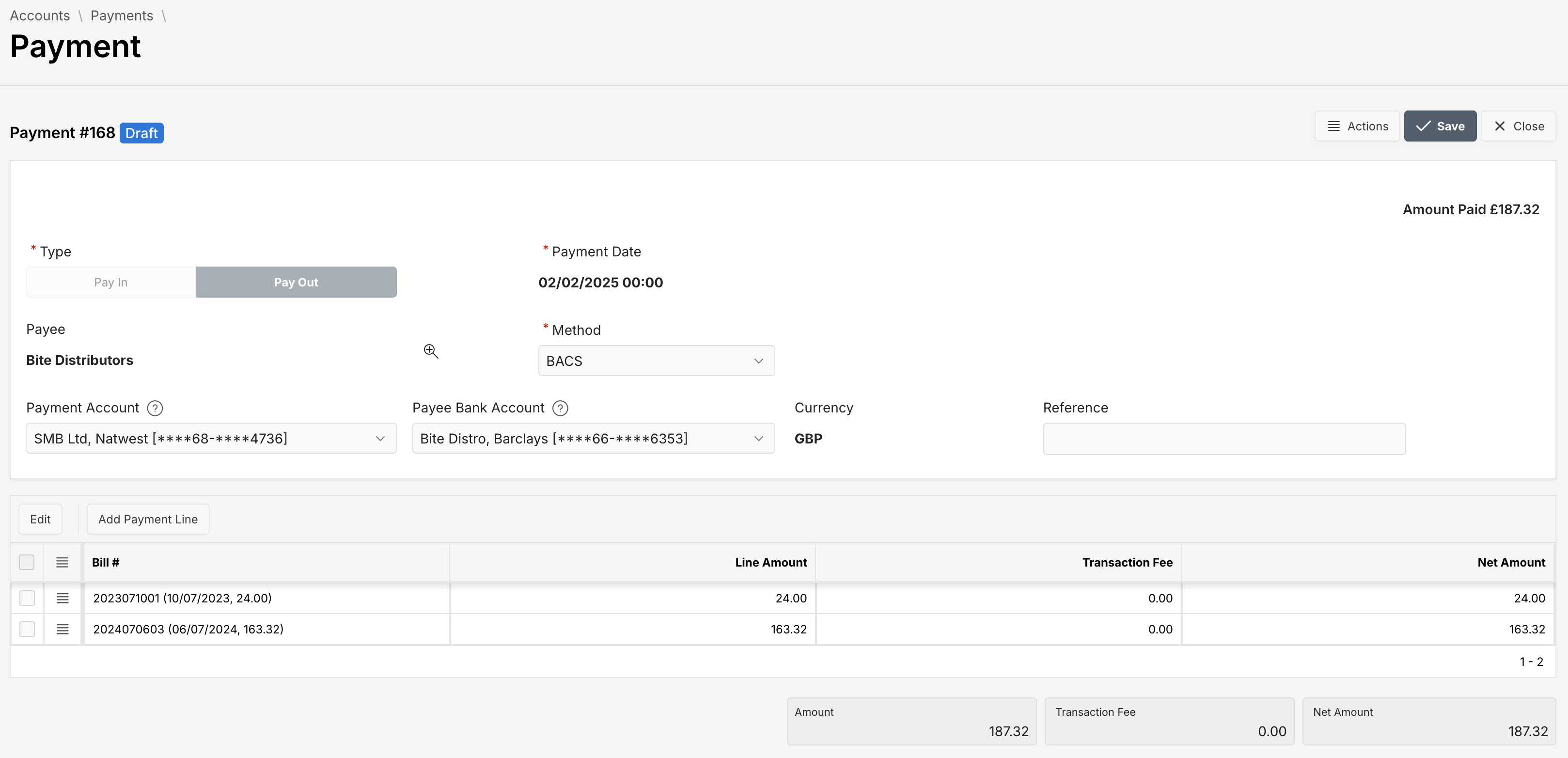
Actions Available:
- Preview – View a PDF of the payment
- Approve – Mark the payment as completed
- Delete – Remove the draft payment if needed
Fields Overview
You must fill in required fields, marked with a red asterisk (*).
| Attribute | Description |
|---|---|
| Type | Indicates if the payment is incoming (Pay In) or outgoing (Pay Out). |
| Payee | The customer or supplier receiving or making the payment. |
| Payment Date | Date the payment is made or received. |
| Method | The payment method (e.g., BACS, Cash, Cheque, Credit Card, Direct Debit, Rental Income). |
| Payment Account | The internal bank account the payment is made from or received to. |
| Payee Bank Account | Bank details of the customer or supplier. |
| Currency | Currency used for the payment (e.g., GBP). |
| Reference | An optional note or reference for this payment. |
| Transaction Fee | Any fee associated with processing the payment (if applicable). |
| Payment Item(s) | List of bills/invoices included in this payment. |
| Status | Status such as Draft or Paid. |
Best Practices
- Always review the invoice details using the icon before confirming a payment.
- Use the Save & Email option to notify payees instantly.
- Payments must be approved to be marked as finalized and posted.